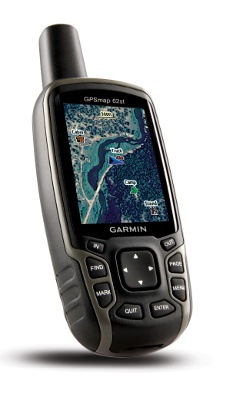
The following has been adapted from my hands on review of the Garmin GPSMAP 62s.
It’s finally here… The Garmin GPSMAP 62st

With the 62 series (and the boater friendly companion 78 series, which shares the same interface), Garmin has married the best features of the 60/76 models, with many of the advantages of the Oregon line.
The problematic high-resolution screens found on the Colorado and Oregon lines did not make it to the 62 series (although I should note that this problem has largely been solved in the latest model, the Oregon 450). Before we get into the details, lets look at some closely…
Related models
- Step up to the GPSMAP 62stc to add a built-in 5MP geotagging camera
- Or drop down to the GPSMAP 62s and you’ll lose the 62st’s preloaded 1:100,000 scale topo maps, but with all the free maps available online, that may not be a big deal
- The entry-level model in the line, the GPSMAP 62 drops even more features — you’ll lose wireless data sharing, the barometric altimeter, tri-axial electronic compass and the micro-SD slot; even so, this one has enough internal memory to satisfy most people’s needs
- To see how the GPSMAP 62st stands up against other Garmin models, check out my Garmin handheld GPS comparison chart
The top of the line 62st is likely to appeal to folks who do a lot of travelling, and want to always have topo maps loaded. This model also brings shaded relief, which can be added to the mid-range 62s with Garmin’s Topo US 2008 or one of their new 24K regional maps.
Garmin GPSMAP 62st display
With transflective TFT screens, the greater the pixel density, the less light that can be reflected back to the user. In order to maintain the bright screen found on the 60/76 series, Garmin left the resolution (160 x 240 pixels) alone. Screen size remains unchanged too, at 1.6 x 2.2”. The 62 and 78 series do enjoy an increased range of colors that can be displayed (65,000 vs. 256 in the 60/76 series). The result is a bright display, not quite as large or as high resolution as the Oregon series, but with much better visibility in a wide range of conditions. I definitely noticed the lower resolution, but these are the tradeoffs you make. I found the 60CSX and 62 series displays to be comparable in terms of visibility in a wide range of conditions. After using an Oregon for a couple of years, I was a bit surprised that the screen size didn’t bother me. The only time it really seemed cramped was when I had a dashboard showing on the map screen (discussed more below).
Garmin GPSMAP 62st interface
Garmin hit a home run on the interface. They did an excellent job taking the best aspects of the Oregon series and making it work on a non-touchscreen unit. I think it is actually better than the Oregon except for when it comes to text-entry, where the touchscreen excels. The 62/78 series interface makes it much quicker to navigate main menu items.
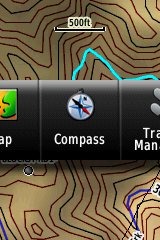 A Page Ribbon menu appears when you press the Page or Quit buttons (see image at right). Just like on the 60/76 series, these buttons advance through pages in forward or reverse order, respectively.
The Page Ribbon menu item that appears is the next screen in the sequence. After a second or two, that screen will automatically open. Or you can press Enter to go there right away, or continue pressing Page or Quit to advance to other pages in the sequence; stop on one and it will open. Page Ribbon items and their order can be customized. I prefer this interface to the old style, but you may not. In that case, you can set the unit to a classic style menu and get the old 60/76 series functionality, eliminating the Page Ribbon.
Newer features on the Garmin GPSMAP 62st
The 62 series inherited a number of features from the Colorado, Dakota and/or Oregon series. These include the ability to utilize Garmin custom maps and BirdsEye aerial imagery, a tri-axial compass, new customization options, advanced track navigation, wireless data transfer and paperless geocaching. None of these were available on the 60/76 series; I’ll explore each in more detail.
Custom maps and BirdsEye imagery
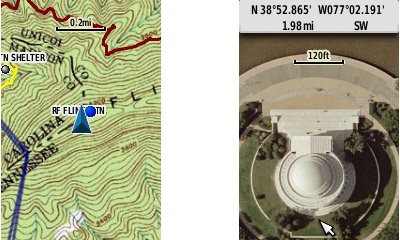
Garmin custom maps allows you to put just about any map image on the 62st. Found a PDF park trail map online? Add it to your GPS! The image at left below shows a custom map — a USGS topo (raster) image. You can read more about this feature by checking out my posts on Garmin custom maps.
With Garmin’s BirdsEye aerial imagery program, a $29.99 annual subscription allows you to add aerial imagery to the GPSMAP 62st. Since I don’t yet have a BirdsEye subscription for my 62s, I’m showing a Jefferson Memorial aerial image using Garmin custom maps, but hey, you get the idea.
Tri-axial compass
Having a tri-axial compass means you don’t have to hold the unit level while navigating. The downside is that the calibration process is more complicated than that for a two-axis electronic compass. It’s the same procedure that is used on the Dakota 20 and Oregon x50 series — here’s a brief video I shot of it. The compass should be recalibrated every time you change the batteries in the unit.
Customizing the Garmin GPSMAP 62st
The 62st offers lots of options for customization. I highly recommend you take the time to set up the following.
Page sequence – You can customize the page sequence by choosing Main Menu > Setup > Page Sequence. This will allow you to select which pages appear in the page sequence and their order. The Page and Quit buttons move forward and backwards (respectively) through pages. I usually put the map screen as my first page and the trip computer last; this way I can toggle between them with the page and quit buttons.
Profiles – The 62st comes with recreational, geocaching, automotive, marine, fitness and classic profiles. You can switch profiles by going to Main Menu > Profile Change. Or create a new one by going to Main Menu > Setup > Profiles. Select the new profile to give it a name. Any changes you make in menus or other settings will be retained in that profile. So start changing things! Want track up when geocaching and north up when biking? No problem. How about a separate profile that just shows USGS topos or aerial imagery? The possibilities are nearly endless.
Data fields – You can change data fields on just about any screen that has these; simply press Menu > Change Data Fields.
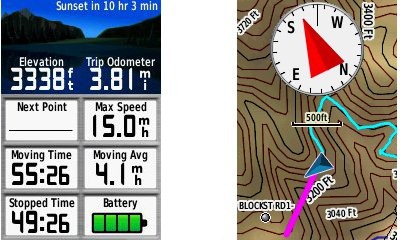
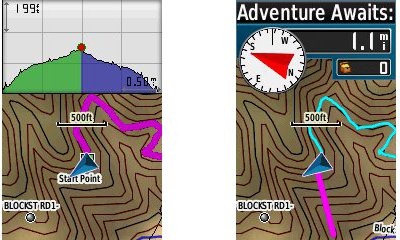
Dashboards – Instead of data fields (and in some cases in addition to), you can select a dashboard for the map, compass and trip computer screens. Choices (depending upon page) may include automotive, stopwatch, small or large data field, recreational, compass, geocaching or elevation plot. I’ve included screenshots showing the last four below. For the trip computer and compass pages, you access this via Menu > Change Dashboard. For the map screen, choose Menu > Setup Map > Data Fields > Dashboard. The one downside here is the small screen on the 62 series; using a dashboard can significantly reduce map real estate.
Track navigation
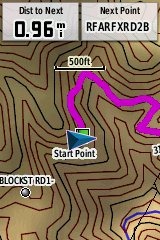 With the GPSMAP 62st, you can select a track to navigate and a route will be created. Waypoints are automatically generated for major high and low elevation points, and start and finish; these and any user waypoints along the track are added to the route. I’m a heavy user of track navigation. If I head out for a trail I’ve never traveled before, I do a search online for tracks (favorite search terms are .gpx, gps, trail name, and park name) and load the track to the device. One advantage of this new track navigation feature is that, unlike typical backcountry route navigation, you’ll get an estimate of actual trail distance rather than “as the crow flies” mileage. Screenshot at right.
Paperless Geocaching
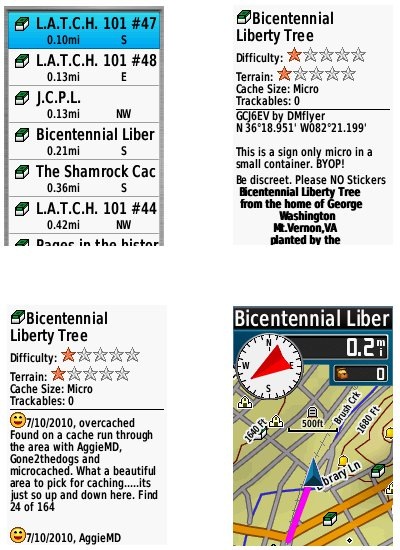
The 62 series is set up for full paperless geocaching support, meaning you can see the description, logs, and hint, and you can log your attempt (find, DNF, etc.) for later transfer back to geocaching.com. Speaking of which, full access to these features requires a premium membership at geocaching.com. Shown below, clockwise from top left: closest geocaches, geocache description, map with geocaching dashboard, recent logs.
Wireless data transfer
The GPSMAP 62st is capable of wireless data transfer with other compatible Garmin units. You can transfer waypoints, tracks, routes and paperless geocache details.
Other features of note
Most of the following aren’t that new, but they are worth mentioning anyway:
Route, Track and Waypoint management 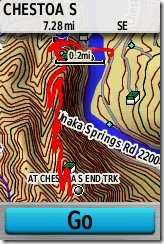
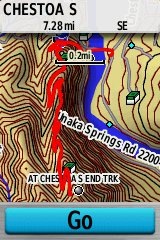
The GPSMAP 62 series has excellent route, track and waypoint management tools, including:
- Waypoints – The ability to project a waypoint, average location, set proximity alerts, and to reposition a waypoint at your current location.
- Tracks – You can choose to hide or show multiple tracks on the map, view an elevation plot, and give them a custom color (17 colors are available). The image at the right shows a track in red (a record of a previous trip). The color of the active track may also be changed. There’s a good thread at the GPSMAP wiki that delves more into track archiving and storage. The 2.44 beta firmware update brought additional archiving improvements; hopefully this will make it to a non-beta release soon.
- Routes – You can view a map of the entire route, edit the route, reverse it and view an elevation plot.
Ability to utilize free maps
One of the most awesome things about Garmin mapping units is the huge number of free maps available. My favorite site for these is http://gpsfiledepot.com where you can find 1:24,000 scale vector topo maps for most states.
Auto use
While I would prefer the Oregon 450 as a dual use unit, due to its touch screen (which is significantly larger too), the 62 series is capable of giving turn-by-turn directions when loaded with City Navigator maps.
Under the flap and inside
Under the protective weather cap is a mini-USB port and MCX external antenna connection. Just so it doesn’t trigger questions, I’ll mention that the item beside the antenna connection is a screw. Inside the battery compartment is a micro-SD slot for additional map and data storage. Note that the photos are of the 62s, and not the 62st.
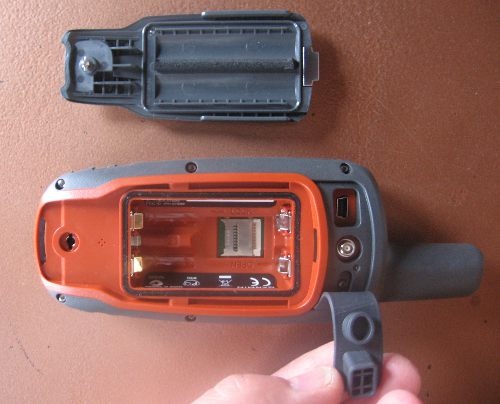
One hardware note here. The battery holders can be very tight with rechargeable NiMH batteries. I actually had to pry the batteries out of a 62s that I tested, though my wife could remove them with her amazingly strong fingernails! The batteries popped out of the other test units with a good slap, and I expect that even tight ones will loosen up over time.
Carabiner and mounting system
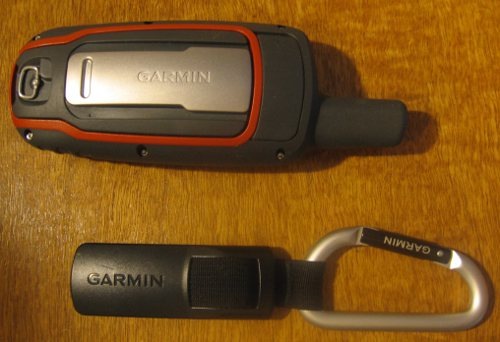
A rail mount on the back of the unit allows the included carabiner to slide onto the device (shown below on the 62s). This is the same system used on the Colorado, Dakota and Oregon lines so the related accessories are interchangeable. I’ve heard some people say they don’t trust the carabiner mount, but after using it on my Oregon for a couple of years, I can say that I’ve never had any problems with it. Personally, I really like it and find it very convenient for clipping onto my pack.
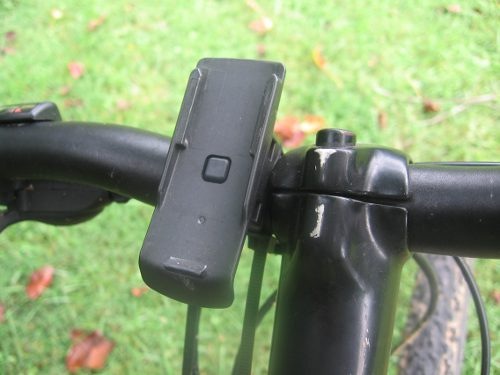
Garmin’s bike mount
Auto mount kits
Garmin GPSMAP 62st performance
For a detailed look at the performance of the 62 series, please check out that portion of my GPSMAP 62s review.
Creaks and bugs
There have been a lot of reports on message boards about units that creak when pressed on opposite sides of the case. I have seen, um, heard this on each of the 62 series units I tested. On the first, you could hear it when powering the unit of and off. It wasn’t as bad on the other two I tested. Whether this portends other problems over the life of the unit is unknown.
With new handhelds, you can typically expect some bugs in the early firmware. The 62 series certainly has these, but many are minor or esoteric. One of the more common and unresolved complaints I’ve heard is that the reported battery level stays on full, and then drops to 3/4 charge shortly before the battery dies. Until this is fixed, when the battery level shows any drop, it’s nearly time to change to a new set!
Garmin GPSMAP 62st tips
I imagine there are more, but here’s a few tips:
- Use the zoom buttons to jump a full page in a menu
- When entering a name, the zoom buttons will switch between keypads
- You can create a custom startup message (e.g., if found, please call…) by connecting it to your computer and editing the Garmin/startup.txt file
- The 60 series header showing battery status is gone; you can check the 62 series battery level by briefly pressing the power button, but you may also want to dedicate a data field to it.
Garmin GPSMAP 62 pros
- Excellent menu system; fast access to features
- Bright screen
- Ability to load Garmin custom maps and BirdsEye aerial imagery
- Paperless geocaching
- Tri-axial compass
- Extensive customization options
- Advanced track navigation
- Pre-loaded 1:100,000 scale topo maps
- Wireless data transfer with compatible units
- Accurate total ascent readings
- Generally accurate tracklogs, especially with latest beta firmware
Garmin GPSMAP 62st cons
- Small, low resolution screen
- Text entry more difficult than on a touchscreen Oregon
- Relatively heavy (compared to Oregon series)
- Most units seem to sport a creaky case
- Firmware still seems a bit immature
Conclusion and recommendations (updated)
Updated to reflect my testing of production (non-beta) firmware version 2.50.
Recommended. Garmin has nailed the user interface, and the improved performance under the 2.50 firmware has eliminated my previous reluctance about tracklog accuracy. Is it as good as the 60CSx under any and all conditions? Possibly not, but it does show a lot less multipath error when standing still. And it seems to settle down a lot quicker. Those two factors alone could make this a great unit for geocachers.
The 62 series models are some of the best handheld units available today. If you’re sitting on a 60CSx and have been wanting to get a Garmin with new features like BirdsEye aerial imagery, custom maps, advanced track navigation, and paperless caching, it’s probably time to pull the trigger. The performance of the new models is pretty darn close to the 60CSx. You might want to wait for the price to drop a bit, but if you’re holding out for firmware nirvana, I can almost guarantee that when (and if) that day comes, there will be something newer and shinier waiting in the wings, with all the troubles we typically see on new units.
More Garmin GPSMAP 62st reviews
- Consumer authored Garmin GPSMAP 62st reviews
have been posted at Amazon
- The Geocaching Podcast crew does an early test of the Garmin 62st, comparing it to several other receivers
- Geocacher reviews of the Garmin GPSMAP 62st
I’ll be posting links to more hands on GPS reviews as they appear, but in the meantime, here are some…
Other Garmin GPSMAP 62st resources
- A PDF version of the Garmin GPSMAP 62st owners manual
- This chart will show you how the Garmin GPSMAP 62st compares to other Garmin handhelds
- A Garmin GPSMAP 62 series wiki
- The official Garmin GPSMAP 62st web page
Compare prices on the Garmin GPSMAP 62st at these merchants:
- Check the current Garmin GPSMAP 62st
- Check out the deal on the Garmin GPSMAP 62ST GPS
at REI.com, where satisfaction is guaranteed and members get 10% back on eligible purchases
- Buy the Garmin GPSMAP 62ST Rugged High Performance Handheld GPS Receiver w/ U.S. Topo Maps
at Tiger GPS
 About Rich Owings