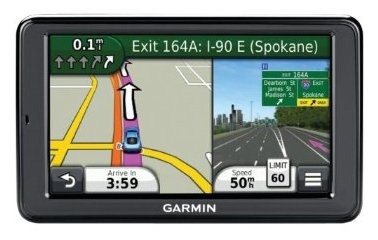
The Garmin nuvi 2555LMT is a mid-range unit in Garmin’s 2012 nuvi Advanced series line. One of the more significant refreshes in recent years, the Advanced series adds several new customization options, improved search functionality and Exit Services. All models in the Advanced series come with preloaded maps of the US, Canada and Mexico. The 2555LMT offers all this along with an extra-wide 5” screen, lifetime traffic and lifetime map updates.
I’ll delve into new and returning features shortly, but first, let’s look at some…
Related models
- Step up to the 2595LMT to add Bluetooth for hands free calling and voice command
- Going the other direction, the 2555LT keeps the 2555LMT’s feature set but drops the lifetime map updates
- Or keep the map updates but drop to a 4.3” screen with the nuvi 2455LMT
- To see how the nuvi 2555LMT stacks up against other models, check out my Garmin nuvi comparison chart
NOTE: Much of the following is based on my hands on review of the nuvi 2555LT, which is identical except that it doesn’t come bundled with lifetime map updates.
Garmin nuvi 2555LMT hardware notes
My biggest disappointment with the Advanced series is that these models do not have a powered mount. So you’ll have to plug the mini-USB connector into the back of the unit each time you use it. Nevertheless, the 2555LMT does sense when you remove it from the mount while powered on, and records that as your last parking spot. To be guided back to it, choose Apps > Last Spot. There is a magnet in the lower portion of the mount that allows it to accomplish this.
Powering on and off
The nuvi 2555LMT powers off and on automatically when connected to the charger in your car. When you press the power button to turn it off, it actually goes into sleep mode. According to the manual, “a battery charge lasts for weeks” in this mode. The advantage here is an almost instantaneous power on from sleep mode. To fully shut down the device, hold the power button down for three seconds.
NuFeatures
Much of this section was covered in my first looks post. One exception is at the end of the “Map changes” section, where I discuss browsing the map for POIs; the other is the final section, “Menu improvements.”
Dashboards
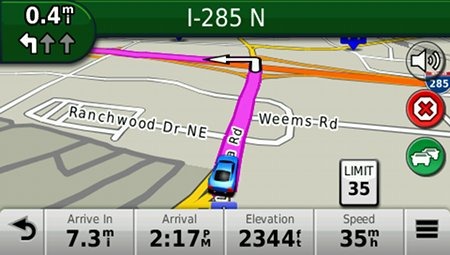
There are eight different dashboards available on the 2555LMT. Basically, these are data field layouts, and are accessed via Settings > Map & Vehicle > Dashboards. You can see one in the image below.
Map changes – Buttons, layers, and more, oh my
The icons on the right side of the map screen are termed map buttons. You can have up to three of the following: Traffic, Mute, Stop, Phone, Detour, Exit services, Where am I?, Trip computer, Map layers, Brightness, Where to? and Audible. This is a nice feature. BTW, see the menu icon (three horizontal lines) in the lower right portion of the nuvi screen above? You can tap that to bring up all twelve of the items available for the map buttons, so it’s easy to reach the other nine.
Map Layers also offers three choices. You can choose to display any or all of the following on the map: Traffic, Trip log and Places along the road. Enabling the latter will display points of interest (POIs). In the screenshot below, you can see that more information appears on the screen if you tap a POI icon. Oh, and which POIs feature corporate logos seems to be solely related to which ones are available to Garmin; it has nothing to do with zoom levels.
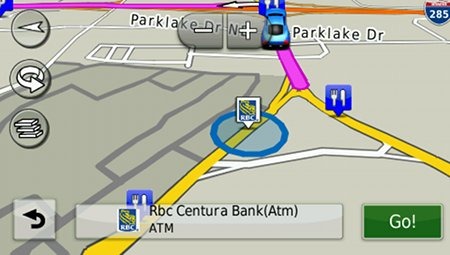
While you cannot customize which POIs to display on the 3D moving map, it’s a different subject when you go into browse map mode. There you can drill down through many categories, as you can see below.

Selecting a destination
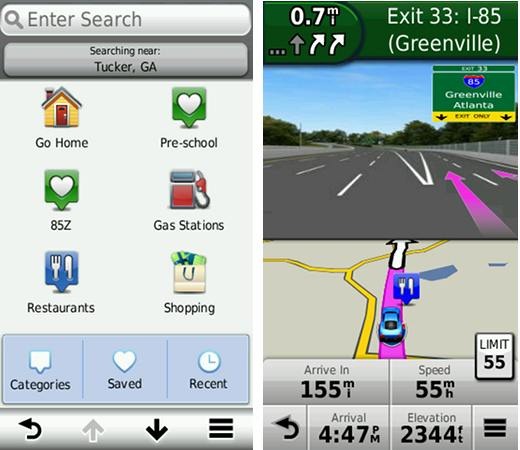
Tap Where To? and you’ll see the following screen…
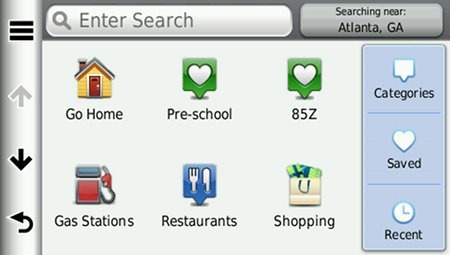
There are a few things to note here:
- You can add a shortcut to a favorite search (e.g., Starbucks), a category or subcategory, a saved place, etc.; this is one of the more helpful new features, IMHO
- Note that you can remove any of the shortcuts shown above
- And you can have up to six screens, for a total of 36 shortcuts
- The Categories icon gives you access to the full range of POI choices, in addition to any shortcuts showing
- You can do a universal search, entering an address or a POI name
- Tap the Searching Near field in the upper right hand portion of the screen to access options such as My active route, My destination, etc.
- To move items around, simply press and hold them for a second until they start to jiggle; then move them to a new position
Exit services
First seen on the dezl trucker series, and similar to Magellan’s Exit POIs, this is another new feature that I think people will find very helpful indeed. So much so that it will undoubtedly end up as one of the buttons on my map screen. It shows you POIs for upcoming exits…
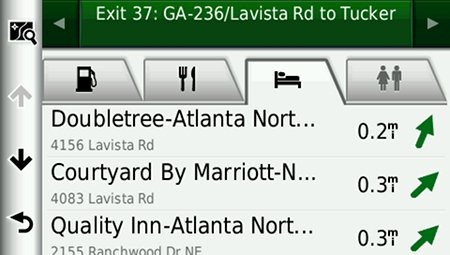
Menu improvements
Recent nuvis had deep menu options that were painful to access. Improved nesting and better use of check boxes have reduced many steps. For example, on 2xx0 series units, you had the following sequence to set avoidances: Tools > Settings > Navigation > nuRoute > Avoidances. On the 2xx5 series, it’s Settings > Navigation > Avoidances.
Returning features
Junction View and Lane Assist
There has been a huge increase in the number of exits showing Junction View imagery (pictured below on the right side of the screen). It seems to pop up at almost every exit in cities where I’ve never even seen it before. I’ll also note that this series includes what Garmin terms photoReal Junction View, where the background scenery should generally match reality.

Lane Assist is displayed in the upper left portion of the screen above, letting you know which lane you need to be in for an upcoming turn. This feature shows up not only on freeways, but on some urban surface streets as well.
Lifetime traffic
Traffic is ad-supported, just like on previous T models. I’ve included some screenshots below.
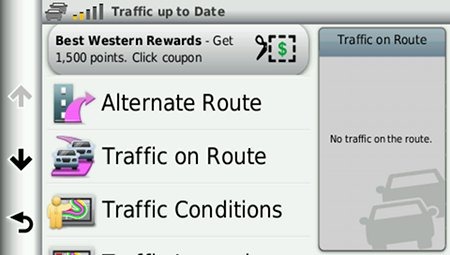

 Unfortunately, the coupon icons are starting to show up a bit more frequently, as you can see in the image below. In the past, it seems like I wouldn’t see these unless I was stopped or on the traffic screen, but note my speed in the screenshot below.
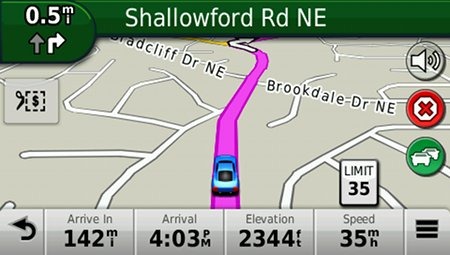
One new option is to purchase the GTM 60 traffic receiver, giving you access to Garmin’s new HD traffic service and eliminating the ads as well.
NOTE: As I was doing the final edit of this post, I realized that my unit had a GTM 26 traffic receiver, and that apparently it should have come with a GTM 36. This could indicate that I have a pre-production unit and that traffic reception and ad behavior could differ in the final production models shipped with the GTM 36.
UPDATE: No, the Advanced series comes with the GTM 26 receiver.
Trip Planner
Trip Planner, used for planning multi-destination routes, is now found under Apps. It seems that Garmin is continuing to make improvements here. While I didn’t do extensive testing of this feature, I did note a couple of things. For one, Time to Via and final destination arrival times seem to be accurately reflected on the dashboard (although it still doesn’t take into account duration of stop, if you’ve entered that info). Also, I successfully transferred a multi-destination route from BaseCamp, using City Navigator POIs converted to waypoints.
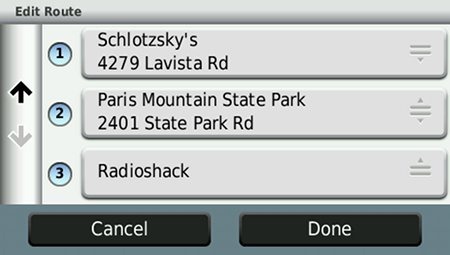
Despite the improvements to this feature, some users prefer the old system where you could add Via points without using the Trip Planner. With the Trip Planner, you need to interact with it briefly after each stop, selecting the next destination.
Your choice of routes
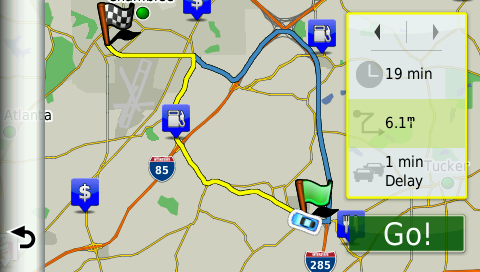
This feature was buried so deeply on the 2xx0 series that I missed it entirely. Now, when you enter a search and tap a result, you’ll see a drop down box labeled Routes. Tap it and you’ll get your choice of faster time, shorter distance and less fuel routes (according to the manual; they aren’t labeled, but you can see them below).
Other returning features
Some other important features introduced on previous generation nuvis, which are also found on the 2555LMT:
- Orientation (portrait style shown below) can be set by by going to Settings > Display > Orientation, but this must be done manually; the 24×5 series does not appear to have an accelerometer built in
- Custom avoidances – Allows you to exclude a road or area from routing
- Advanced detours – Lets you exclude roads from the active route on the fly
- Trip log – Now part of “Where I’ve Been,” you can clear it from within the app and enable/disable and clear it from Settings > Device
Garmin nuvi 2555 series performance
The following is taken from my hands on review of the Garmin nuvi 2555LT:
POI searches seem significantly faster than on other recent models. And routing speed is somewhat faster than on my 2360LT with the trafficTrends historical road speed database enabled on both units. While I’ll admit it’s a bit subjective, routing does seem to be a little smarter on these second generation trafficTrends units. I definitely see differences and they generally seem to be better choices.
Names of nearby roads appear on the map – sometimes there are more of them and sometimes less than on the 2360. Occasionally I’ve noticed a slight lag in menu responsiveness of the 2555LT. It’s not always there, and it’s short enough when it does occur (less than a second) that many users wouldn’t even notice it.
Garmin nuvi 2555LMT pros
- 5” screen
- Strong customization options
- Exit services
- Lifetime map updates included
- Lifetime traffic
- POIs can be displayed on the map
- Offers several choices of routes
- Extensive junction view and lane assist coverage
- Advanced detours allow you to exclude roads from active route
- Custom avoidances allow you to exclude roads or areas from all routes
Garmin nuvi 2555LMT cons
- Traffic is ad-supported and is beginning to get more intrusive with coupon icons appearing on the map screen when moving
- No powered mount
Conclusion and recommendation
Highly recommended. Even with my love of powered mounts (missing here), the nuvi Advanced series rocks. New (and very useful) customization options, exit services and other strong features will tempt many nuvi owners to upgrade. It looks like Garmin has another winner.
More Garmin nuvi 2555LMT reviews
- Consumer-authored Garmin nuvi 2555LMT reviews
have been posted at Amazon
- Here’s a Garmin nuvi 2555 series review from a personal blog
I’ll be posting more links to hands on GPS reviewsas they appear, but in the meantime, here are some…
Other Garmin nuvi 2555LMT resources
- The Garmin nuvi 2555LMT owners manual
- Want to see how the 2555LMT stacks up against other models? Check out this Garmin auto GPS comparison tool or my own Garmin nuvi comparison chart
- There is a dedicated Garmin nuvi message forum at GpsPasSion
- And another nuvi forum at GPS Review
- Our auto GPS FAQs, which includes quite a few nuvi tips and tricks
Compare prices on the Garmin nuvi 2555LMT at these merchants:
- Check the current Garmin nüvi 2555LMT 5-Inch Portable GPS Navigator
at Amazon
- Get a great deal on the Garmin nuvi 2555LMT at GPS City
- Find the Garmin nuvi 2555LMT 5.0 GPS Navigation System with Lifetime Map and Traffic Updates
for a great price at Beach Camera (the folks behind BuyDig.com)
- Buy the nuvi 2555LMT
direct from Garmin
- Get the Garmin nuvi 2555LMT from Abt Electronics
 About Rich Owings
Are we sure the LAST SPOT is working with the 2555? On mine I always get the message “No Parking spot found”!!!
Also how can I tell which GTM receiver came with the unit?
It is supposed to, IF the unit is on when you remove it from the mount.
The GTM number is on the car charger.
Thanks for the reply.
I confirmed and it doesnt remember the parking spot. On or off it doesnt work.
I guess thats a bug that knowing Garmin will never be fixed. 🙂
I checked the charger and it shows as being GTM 26.
Can you please tell me where you got that the unit should be packaged with the GTM 36 so I can ask Garmin about it?
Thanks
Yep, sounds like a bug.
Mine was a 26 too, and I just saw someone else refer to a GTM 26. I think whoever told me they got a 36, well, it was probably just a fluke.
I’m looking for a mid-range GPS as a Christmas gift and am between the Nuvi 1450LMT ($139.98) and the Nuvi 2555LMT ($219.99). I’m wondering if the newer software and increased junction and lane functionality are worth the $80 difference in price? Thanks!
For me they would be. Exit services and customization options would be my main reasons for going for the 2555LMT.
Got the nuvi 2555LMT for Christmas. Hooked it up to the PC and went to the Garmin web site to register it and get any new map upgrades off the lifetime map upgrade site. Followed all the on screen directions, website wouldn’t reconize the divice. e-mailed Garmin support, followed all the instructions they gave. After many attempst it finlly said all avaliable maps were installed. Now there are no maps on it at all. Sucker is goig back to Best Buy this morning. This is the second Garmin device I’ve had trouble with. Their web site has problems.
Yeah, it’s not always the smoothest process. There are a couple of ways to do it; you can use the MyGarmin site or their Lifetime Map Updater. If you try for “third time’s a charm,” you might try the alternative method. Some people let it run overnight as it can take awhile.
Thanks for the reply. At this point I’ve spent 8 hours of my time trying to get the Garmin web site to link up to my device. You say to hook it up and let it run all night. That’s .messed up, a billion dollar company and their site can’t link up with their products.
It definitely should be easier than it is.
Took the unit back to Best Buy. They exchanged it for a new one, it works fine. Went to Garmins web site, hooked it up to register it, left it hooked up all night as you suggested. Nothing happened, the web site still will not link up with the divice. Went to the forum that you list, there I found that this problem goes back at least 2.5 years. Shame on Garmin, I own 2 of thier device and have had the same problem with both. I won’t ever buy another one of thier products.
And you did register the device before trying to update the maps? Are you using MyGarmin or the Lifetime Map Updater to update it?
I didn’t try to update the maps on this unit. I was afraid it would wipe out the maps like it did on the other one. I just went on MyGarmin site and simply tried to register it. The site will not link up with the unit.
Did you get to this page…
https://my.garmin.com/mygarmin/registration/gettingStarted.htm and did you install the Garmin Communicator plugin?
yes I got to that page. Clicked on Register, went to the next page clicked on Automotive, went to the next page. Signed in to my account, hooked the unit to the PC, let it run all night. Nothing happened…
When I did the initial map update on my 2555 I used the Garmin Lifetime Updater program and it handled “all the stuff” for me. Didn’t have a problem and the total download and install on GPS and computer took about 1 hour. Far better time than prior downloads and install.
I incresed volume to the highest but steel hardly hear the voice on the other end.
Do any of you share this address-entry issue of the 2555LMT?
I would expect the address-entry would work as follows:
1. Enter city (and, while typing it, nearby cities of similar names appear)
2. Enter street (and, while typing it, that town’s streets appear to select)
3. Enter number
Instead, here is the operation I encounter:
1. Enter number
2. Enter street
3. Enter city (not really sorted by distance. And in Massachusetts it is often annoying because towns like “Bedford” are actually only recognized as “Bedford Twp”. And if a list of, say, “Bedfords” appear, then you see them all over the country, NOT SORTED by distance.)
This is just a long-winded way of saying that address entry takes a very long time for me. Anyone else? I wrote to Garmin last week but haven’t gotten a response.
Otherwise, I am quite pleased with it. The traffic data are useful, and it acquires GPS signal instantly.
gregg
One option is to tap Where To? and then the top right Searching Near box. You can then choose Where I am Now or A Different City.
Thanks, Rich. Yes, that’s the way it’s been set up. I’ll keep trying it to see if the problems / delays continue or not.
The longer I own the 2555-LMT, the less I like it. Perhaps its greatest strength is the immediacy of capturing the GPS signal. It is also nice that it remembers where I’ve been driving, in case for some odd reason I need to review a past voyage.
But the user interface (or “order of data entry”) is kind of maddening. Maybe I’m too much of a stickler, but that and some other things bug me months later:
1. I wish it asked for the city of search before the street.
2. I wish that, once it knows the city, it would only show street name suggestions for streets that actually exist in that city.
3. I wish that the traffic data covered more of the US. Or reasonably ANY of the US, really. I live and work in suburban Boston… and have driven on major highways through CT, NJ, NY, MD, DE, and NC. Rarely have I been warned of major traffic jams ahead of time. (In the rare cases that it was aware of heavy traffic, I have been thankful for the re-routes.)
4. I wish that bookmarked locations were listed alphabetically and not by order in which I enter them.
5. I wish that I wasn’t asked, “do you really want to see ALL the saved locations?” each time.
6. Just… grrr….
g
I think the reason they went with the “search near” option instead of city first, is the problem of streets located near city boundaries. Say you’re looking for a street in south Asheville, NC. Is it in Asheville, Arden, Fletcher? Plug in the city first and it will only show results for that city and you’re likely to not find it.
Traffic still isn’t up to par. Lots of false positives and false negatives. You could always try buying a GTM 60 traffic receiver which *might* improve things.
I thought favorites were listed in order of distance from you unless you do “search near.”
Does this model have another name in Europe? I cant’t seem to find any sellers that carries it. I have no problems finding the 2595, but I have no need for the Blue Tooth or voice command, so i dont wanna pay for these options.
Different models are sold in different countries. Where are you trying to buy it?
Denmark
Nope, not available there. You could drop down to a 4.3″ screen and get the 2455LMT, or get an older model like the 5″ 2440.
Just got the Nuvi 2555LM from Costco. It won’t turn off! I press the button for the 3 seconds, get the question Turn off device? Cancell or Off, press Off and it turns off….for about a minute, then spontaneously turns back on. Thoughts?
Found both the problem and the solution
It was stuck in DEMO mode….and geeze, the manual didn’t mention anything about it. I kept coming back on and the GPS was OFF.
1. Hold down the on/off button for the 10 seconds to do a hard off.
2. press lower right corner and turn unit back on.
3. let it cycle thru and wait until you get a screen that says “erase user data”
4. release lower right corner and answer yes
5. unit will turn on and be new out of the box mode
6. It didn’t delete any of my custom routes and only had to do the few original set up items.
Good as new. Now to figure out how it got in the DEMO mode. This thing has about 5 weeks to redeem it self or it goes back to Costco. My 755 worked just fine we just wanted the lifetime maps and the 5″ screen. However, I found out I can get the LTM for it and that would be way cheaper.
Bizarre. Glad you figured it out. I never would have thought about the demo mode as a cause.
And just an update….haven’t had a problem since. Still have the unit and love it. Just entered my custom routes for my up coming trip. Still can’t figure out how it got in DEMO mode tho…LOL Oh well, as long as I can remember how to fix it if it happens again.
I believe it goes into demo mode when you set the GPS Simulator for indoor use… Thanks for the fix now i can use my GPS.
Today I bought a Nuvi 2592LMT and it came with a GTM 36 traffic receiver.
Bizarre. I can’t even find the 36 on Garmin’s website.
Sorry if this is an old question, but I cannot find ‘proximity alerts, in the settings menu?
Thanks for any help
You can only set proximity alerts with custom points of interest.
Rich, I need to replace my TomTom that I have had for quite some time. I did a map upgrade before I left on a trip to PA. I was going by the way of Princeton WV then on to Pittsburg. I was half way to Princeton before it could show me how to get there. Upon leaving it did the same for the remainder of the trip. Anyway, this 2555LMT was recommended to me. Do you consider it the best option? I would like to stay under $200.00 and I can get this for $179.00 at Sam’s club. I would appreciate it if you would give me your opinion.
In comparing the 1490LMT to the 2555LMT i notice one says free lietime FM traffic included and the other says free lifetime traffice updates…..can you explain the difference
There is no difference. Just different wording. Both have ad-supported NAVTEQ traffic.
The 2555LMT is a very good unit, but if you go up to the 2495LMT (4.3″ – $200) or 2595LMT (5″ – $230) you’ll get voice command functionality to. Just say “voice command” and speak an address, POI, etc. If you don’t want to do that, yes, the 2555LMT is an excellent choice.
I just purchased the 2555 LM and the first time I used it, it worked very well. Every time after (4 more times), it would not speak the street names. Keep in mind, I am using it locally simply to test it out to see its functionality. is there a way to turn the “speak the street names” back on? Your help is very much appreciated. Thanks
Did you change voices?… http://gpstracklog.com/2012/02/my-gps-wont-speak-street-names.html
Thanks for the useful information. I’m considering to get the 2555LM from costco today as it sounds like the LT not really a benefit.
Got a question, does Garmin’s map cover Alaska and Hawaii? We are heading to Alaska in a few days, is this a good GPS to use for navigate there?
Thx in advance.
Yes, it includes Alaska and Hawaii.
What is the difference between the 2555LMT abd 2555 LM?
The LM just doesn’t have lifetime traffic. That is the one Costco was carrying. Not really an issue, IMO, if you live in rural america like I do.
When I was researching auto gps models, I stumbled upon this site. It has been instrumental in my quest to find a gps for my car. I appreciate all the work you put into this site. I give you a lot of credit. Anyway, with that said, I purchased the Garmin Nuvi 2555LMT and here’s why: my home computer is a Mac G5 (Power PC, not the new Intel-based Macs). I am running OS X (10.5.8) and that is afar as it will go. One day, I will spring for an iMac but for now, my G5 desktop works flawlessly. Because of that, all three major GPS companies work with Mac OS 10.6 for the most part. Garmin is the only one that works well with older Macs. I was able to register my Nuvi, update the software, update the maps without a hitch. My old TomTom One would just hang, forget Magellan (even tho the AAA tour book would be useful), both made updating a real hassle. I actually had to use a friend’s pc netbook and it was slooooow! But thanks to Rick and this site, the 2555LMT fits my needs both in the car and on my Mac. Hats off, Rick, well done.
Yesterday, I was checking your reviews and comments – got excited and bought the 2555LMT today at Walmart for 179 plus tax. When I unpacked it, I discovered that the unit is a 2555LM and came with a GTM 36 traffic receiver. Strange business at Walmart (and I suppose Sam’s Club is the same). See also what Geoffrey Whaley says: June 10, 2012 at 8:59 pm
Buyers be aware that you may get cheated in those stores. I returned mine.
I don’t know why, but some come with a GTM 26 and some with a GTM 36. I’ve heard of no performance differences between the two.
My 2555LMt is 6 months old, was working fine, now it will not turn on
Assuming the battery isn’t dead, try holding down the power button for 30 seconds. Otherwise you might try to update the firmware and see if that revives it.
I just exchanged my 3rd Garmin GPS at Best Buy. My first unit 765LMT started to have issue with it’s mount connection. Even exchange at Best Buy. The 2nd unit would no longer lock to the windshield with suction mounting bracket. I really liked this unit but they no longer carried it in the store and I had it under extended warrenty so I replaced it with 1450LMT. Loved this unt until yesterday when a row of pixles went bad on the display and now they stay white all the time while the unit is on. Again I had the extened warrenty from Best Buy and was able to exchange this unit for the 2555LMT after some discussion wiht the store Manager. After revieweing this website, I feel much better about this unit as I didn’t know much about it and as long as it had the same or minimun features as my previous unit, I was happy. I did notice that this new unit came with a CMT35 traffic receiver. I have read coments about the CMT26 and CMT36 but nothing about the CMT35. I hope it works well for me. I have used Garmin GPSs for about 6 years now and I love them. I’ll update this post after some time with this new unit. This web site is awesome. Thanks!!!
~Steph
Yeah, I have no idea why, but the 2xx5 series ships with various traffic receivers.
I need a easy unit for the wife to use I am considering the garmin nuvi 50lmt or 2555lmt. Please let me know which one would be most reliable and easiest to use for the tech challenged.
Thank you!
Tom
The 50LM is simpler, but lacks a few advanced features including traffic.
Great site. I have a Garmin Nuvi 2555 purchased from Costo. I have had it about 6 months. Worked fine for a while but recently it will not turn on. I hold down the power button for a while and eventually it will come on but I am worried that it eventually will not. The battery is fully charged. Any ideas? Thanks for any help you can provide.
Yeah, I would make sure the firmware is up to date, backup all you favorites, do a hard reset and then restore your favorites, in that order. If that doesn’t work, contact Garmin before your one year warranty is up.
Thanks for the reply! I will give those suggestions a try.
After owning the 2555LMT for over a year, I continue to be disappointed with its search capability, or lack thereof. Many restaurants, wineries and other POIs cannot be found by name. Instead, I have to enter the address to map it. Also, let’s say you know the name of a restaurant, but are unsure of the exact spelling, Garmin is no help. if you misspell by even one letter, NOT FOUND. Very disappointing.
Have you updated your maps? There wil always be missing POIs, but that wil help. As far as spelling goes, you can enter a partial word.
I have a couple of Garmins and recently purchased another. I have never had a problem with Garmin and would never buy anything but a Garmin. My older Garmin models have the “spoken recalculating voice” and my new 2555LMT does not. My wife really likes that feature and want to know if any of the newer Garmin nuvi models have this feature.
I believe the “newer” Nuvi product line no longer uses the “recalculating statement”. It seems many folks, myself included, who owned older units thought it was very annoying.
I have a 1490T which does use “recalculating”. I also have a 2555LMT and it does NOT use “recalculating” in the voice commands.
Here’s the official word. So a 3700 series would do it, and according to Garmin a 23×0 series model would do it. Otherwise, you’d have to drop back a couple generations to the 1xxx series.
Thank you both for your responses, now I know what I need to look for.
I bought my fiance the garmin nuvi 2555 LMT. When I gave it to him he asked if it was the truck drivers version…..clearly not since I did not realize one was out there that was different. Either way, does 2555 LMT work for over the road (long distance) truck drivers??? Or did I make a huge error and it wont work for him? He does a lot of local road driving instead of highway driving. Please help…..
Thanks!
Debbie
Ouch! It will work, but it won’t have the restrictions like bridge clearances that a trucking unit would. For that you would need the nuvi 456T, 465LMT or Garmin dezl series. Those will have additional trucking features too. Hope this helps.
My wife bought me a new 2555lmt for Christmas and I have hesitated on opening the unit. My question is what does the blue tooth units do for you other then hands free phone calls. Will it tune down the radio when the unit alerts you of lane changes etc ???
No, hands free is it, unless you have an Android phone. If so, it can do a lot more with this app: http://gpstracklog.com/2012/06/garmin-smartphone-link-review.html
I got a 2555LMT as a gift. It appears that the car cable is just a charger and not a traffic receiver. I had a 1300 LMT that came wtih a traffic receiver. Should the 2555 LMT have included a traffic receiver and not just a charger? Thank you.
Does the traffic symbol on the map turn green when it is plugged in?
What makes you think it is just a charger?
It says it’s a charger & when I plug it in & push the traffic icon on the unit, it says that I need a traffic receiver for the traffic function to work. I took it back to Best Buy & they didn’t have a clue what I was talking about. I opened up several other 2555LMT & 2595LMT boxes and they all had chargers (not traffic receivers). I looked at several other retailers & found the same thing. The box doesn’t say it comes with a traffic receiver, but the product info on various web sites says they come with traffic receiver. I called Garmin & they said there should be a 60GMT traffic receiver included. I ended up just getting my money back from Best Buy & will try to decide how I can assure that I get a traffic receiver if I order it over the Internet. Any other ideas?
Wade,
Does the cord on this unit have a flat (thick) area about 1.5 inches long near the end of the cord that plugs into the GPS? It would probably be about 1/2 inch wide by 1.5 inches long and it’s kinda flst-ish. If so, that is the traffic receiver. It could be that you are not in an area which receives traffic updates & that might be why you can’t seem to see anything.
Steve
They don’t come with a GTM 60, but the traffic receiver should look something like this (as Steve says)… https://buy.garmin.com/shop/alt-image.do?pID=14994&img=productImageLarge.
It sounds like these could have been special edition 2555LM and 2595LM’s but they didn’t go into the proper box. If you buy a 2555LMT or 2595LMT from Amazon, I’n sure it will have the traffic receiver.
The “car devices” included with the 2555s & 2595s were definitely just a charger & not a traffic receiver. Sounds like they may have been intended as LMs as you suggested & just mis-packaged. The Garmin support guy was very specific that there should have been a GMT 60 included with either model & that GMT 25 or GMT 26 were incompatible. The only reason I asked about the GMT 25 & GMT 26 was because I had one of each already. Guess Garmin made a mistake with packaging & then fixed the problem by providing bad information from their support personnel, That’s my normal luck. I’ll just stick with my 1300LMT for a while longer that works fine (except that the battery is fried & only lasts a few minutes without being plugged in). Thanks for the info.
please tell me how to program multiple addresses thankyou
From the main menu… Apps > Trip Planner, then tap the plus symbol.
@WadeB – You got more misinformation than you know – The GTM 26 is compatible. The support guy just looked at the accessories tab that shows an HD GTM 60 as the only traffic receiver they sell to go with it. It only comes standard on the 3x90LMT models.
I just bought a 2555 LMT. I cannot get it to route “most use of highways”. I live in MA and am frustrated taking side roads (TR-1) with lights, slower traffic etc. while paralleling RT-95. When I get onto RT-95 it tries to route me back onto RT-1. If I can’t get it to use major highways, I’ll just return it. Thanks in advance.
Check under Settings > Navigation > Calculation Time and make sure it’s set for Faster Time.
Make sure you don’t have Highways checked under Avoidances in the same section.
If those settings are correct, under Settings > Traffic > you might try enabling or disabling trafficTrends.
I just got garmin 2555ltm.I have tom tom one and after I program a Rt.I can review all the Rts. can you do that with this unit and if so how.
Once you enter a destination, tap the green bar at the top of the map screen to get a list of turns. Then tap the three bar menu icon to see a map of the route.
THANKS for the inforemation I will give it a try
Rich,
I was looking at a Garmin 2555LMT and it was recommended that I consider a TomTom Via 1650TM. What are your thoughts on these two units?
I would go with the Garmin, unless you live in a place where traffic is an issue. In that case, TomTom’s (possibly) better traffic capabilities might outweigh it’s other disadvantages.
Hi Rich &co,
I don’t know… The longer I own my Garmin 2555LMT, the less I like it. I’ve shared my UI / UX complaints starting in a comment March, 2012 (above). My feelings haven’t improved. In summary:
PROS
Speedy GPS acquisition
Large screen, and “which lane should I be in?” errors are rare, but still happen on some Massachusetts merges in complex towns like Somerville or Boston
CONS
Often, despite heavy traffic, the unit will put me on a traffic jam on I-95. It does not recommend a re-route until after entering the thickest of the jam.
My greatest annoyance is: entering the address for a destination. If I take the extra step of “search near a certain town,” even the step of ADDING that town is irritating. If there are several towns with that name, it produces a list of towns unsorted by distance. Often, while I’m in suburban Boston, I’ll enter a town name and it will produce 10 equivalents – STARTING WITH ENGLAND. Also, it suffers from the usual GPS issue with Massachusetts towns, which is that it does not recognize “Burlington” and must be told something like “Burlington Township.”
The street name text-entry hints are not filtered by your current location.
“Recent trips” sometimes doesn’t show the most recent entry. For example, I had a meeting in the town of Andover, MA. I entered the address into the unit and began the trip. I stopped, got gas, etc., but that destination did not appear in the list of recent destinations. Several days later, it appeared.
Okay, I’ll stop ranting. But these things could be easily remedied or reviewed.
g
I hooked up the 2555LMT to my laptop and it shows updating after quite a while but I never knew whether it has updated the maps or not.
How do I know if the map have been updated or not?
Also I tried to download new voice but it says “detecting device” and 3 hours later, it has still not download anything? any idea.
To verify that you have 2013.40 maps go to Settings > Map & Vehicle > myMaps.
What program are you using for voice updates? I’d suggest using WebUpdater.
Sorry for getting back late..
I tried to hook up the 2555 again using myGarmin, lifetime updater as well as Garmin express but unfortunately with no luck. At one point on Garmin express, it goes to the download process for an hour with 2013.40 update , but after download reach 100%, it goes into “detect devices” mode for over another hour. In the end I disconnect and check my Maps but it still says “2012.20 ALL”.
I have lost faith in this brand as it is one week old. I will try cut. support line to-morrow, otherwise it is going back.
Thanks anyway!
Fyi..
Perseverance paid off. Thru Garmin express, (communicator plug-in must be installed) I managed to get the map updated to 2013.40.
I realized that the Garmin installer program would not override the default map due to not enough space on the Nuivi. and therefore after inserting an external 4GB micro SD card, the map was updated. Once the download, building.., installing.. [all process] completed, it then automatically overrides the previous map. It took quite a while though. Long process need to be patient. To make room on the Nuivi, delete unwanted files like not need pictures, foreign voices and languages etc..
Glad you got it to work!
Rich, your site is very helpful. Thank you. I have a Nuvi 350 for many years. Issues with touch screen and satellite acquisition beg an upgrade. I played with the 50LM and 2555LMT at a retailer. The 50 is more similar to the 350 user interface. The 2555 obviously has many new features.
After many years using the 350, the one thing I would like is easy an toggle between fastest and shortest routes. I often compare at start of trip or want to switch when I go from highway to local routes while en route. I notice in your 2555 review “Now, when you enter a search and tap a result, you’ll see a drop down box labeled Routes. Tap it and you’ll get your choice of faster time, shorter distance and less fuel routes (according to the manual; they aren’t labeled, but you can see them below).” Is this only when you first enter a route, or can this be done on the fly without going through multiple layers of menus to get to navigation options? I did not see this in the buttons or layers options. It would be nice if a button on the map page would recalculate without digging down into the menu. Can this be done?
Also, the 2555LMT comes with the GTM 26 traffic receiver. Will the GTM 60 (without ads) work if purchased separately? Can you add any GTM to the 2555LM and then get traffic functionality?
Thanks again. Don
I know of no other way to access that, but it’s only another tap or two.
The GTM 60 should work fine with the 2555LM.
I have the Garmin nuvi 2555LM and I love it, but recently developed a problem with the unit not charging. The car charger went bad, led would not light up. I replaced it with another one and that worked fine, but the mini usb connection is a ‘straight in’ instead of the 90 degree (elbo) for strain relief, and the cord is a coil type but rather short so consiquencely the tension on the mini usb connection on the back of the unit bent down. I bent it back and it would charge again. But now it is not charging. So I bought another one same problem does not charge. I also bought a usb to mini usb cable to see if it would charge by connecting it to my laptop and still no-go. So it appears to be the mini usb connector on the back of the 2555LM. Is there an easy way to fix this? really frustrating! NOTE: i pressed and held the battery icon and the stats come up on the unit and says that there is not usb cable connected. any help would be appriciated.
There could be any of several things going on here. It sounds as if you aren’t using the USB cable that came with it to connect to your computer. When you connect it, does it go into mass storage mode? Also, there is a fuse in the car charger tip that could have burned out. Is the unit still under warranty?
Hi rich, thanks for responding. Yes I am not using the original. Garmin cable, I am traveling in business and forgot to pack it. It does not go into storage mode it does not do anything. I press and held the battery for several secs and it indicated no USB connected. So it appears the mini usb socket on the back of the unit is faulty. I suspected it shorted out and caused the fuse to blow in my original car charger that came with it. It is a referb unit from eBay BTW. I did not realize you can ck/replace the fuse in the car charger..it is not obvious how to open it to get at at. I used my bothers garmin car chgr cable and it too no loner lights up (blown fuse) now it is to the point where it does not see the cable at all . I have a eBay MSG into the seller to see if I can send ut back and exchange it. Only had it since nic 2012. Don’t know what else it could be.
If it’s less than a year old and you bought it new, it should be under Garmin warranty.
Yes Rich, i am sending it back. I got the store on-line to send me an original receipt and returning it. Thanks again for your help!
Brian
I think if purchased via EBAY that Garmin may not recognize the guarantee/warranty. Many EBAY sellers are not authorized Garmin agents.
Umpire20, you are right about that! I got the store receipt with no mention of ebay.
I was checking out the Garmin 2555LMT when I saw that the 2557LMT would be out around the end of March. Should I wait for the 2557LMT?
I can’t say without testing the new ones first. But I did just get a 2597LMT and should have a first looks post in the next few days and a full review posted within a month.
Thanks, Rich. I’m in no hurry and want to get the best one.
Al
No pressure Rich, but I am in a hurry! 😉 I leave 4/16 on a 3000 mile road trip and am holding out to decide between the 2555 and 2557 (don’t want bluetooth or voice control). The key difference appears to be method of voice directions. I called Garmin to ask if the new voice could be turned off for old voice. Support didn’t know. Nothing would be worse than a quirky or annoying voice! Let us know. Don
I expect my 2597LMT review to be posted by April 9. Tentatively I’d say go for the newer model. The Active Lane Assist is much better than the previous way of handling it.
I’ve not noticed any major differences in voice guidance, but then I haven’t been paying a whole lot of attention to that either.
I just received the 2555lmt for my birthday. I have an older Garmin Nuvi and I’m wondering if there is a way that I can transfer all the way points I have saved in my old unit to the new one.
Yes… http://forums.gpsreview.net/viewtopic.php?t=17731
Rich, I sent back my ‘none charging’ Nuvi 2555LMT Referb under warranty to Garmin. They were able to confirm remotely my SN registratation and they did not even need my purchase receipt. If you recall my issue of it blowing the fuse in two car chargers and now it fails to charge with the USB cable connected to the computer too, no response. They said it would be 10 -14 days that they would send me back either a new one or another referb. –I’m happy!
Cool!
Purchased a 2555lmt in Oct. 2012 and did the updated earlier this year. Whenever I choose “view map” it keep giving me directions to the last location instead of just showing my route of travel. What am I doing wrong? I cleared out all of the recent trips.
Go to the main menu and tap Stop. Or choose another destination.
I am looking for a new GPS and I wish someone could tell me the difference between Lifetime Traffic, 3D traffic, real time traffic, etc. I live in Houston, Texas. Know the difference between these would help me decide if they would benefit me. Thanks. I have used your site a lot.
http://www8.garmin.com/traffic/
Let me know if you need more clarification after reading that.
Rich, is there a way to operate (e.g., set up route) on the 2555 when it’s charging via a usb cable attached to my computer? The screen merely shows the Garmin connected icon and won’t go to the operating screens.
Thanks! Enjoy your columns!
Not directly. You could run Garmin BaseCamp, set up a route there and transfer it though.
Yep…forgot about that (senior moment)! Thanks, Rich!