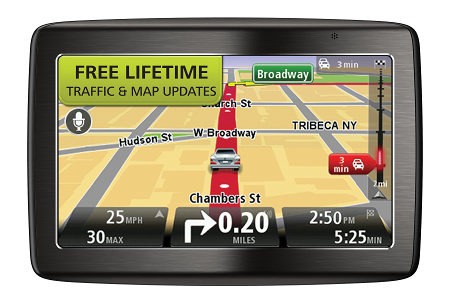
Hands on with the TomTom VIA 1535TM
The TomTom VIA 1535TM
Related units
- Drop down to the VIA 1505TM and you’ll give up Bluetooth and voice command
- Or choose the VIA 1435TM to keep those features, but drop to a 4.3” screen
- The VIA 1535T drops the lifetime map updates
- To see how the 1535TM stacks up against other models, check out my TomTom comparison chart
TomTom VIA 1535TM hardware
The photo below shows the rear of the TomTom VIA 1535TM. Gone (thankfully) is the EasyPort mount, which was prone to unintentional detaching from the unit. The new style integrated mount attached to my windshield easily and never popped off. Unfortunately it did not perform as well with friction dashboard mounts. I never could get it to stick to one of those. I prefer friction mounts over windshield mounts, but I have to add – this is the best performing windshield mount I’ve ever used. Even haphazard attempts to put it on the windshield worked in most cases. You simply put the mount in place and then twist the knob to lock it.
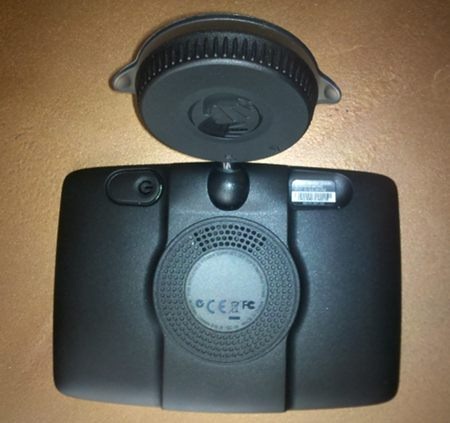
Note that the power button is on the rear of the unit. I did not find this location to be problematic, though you do have to hold it down for a second to start the device. Opposite the power button, to the right of the mount, is a recessed slot for the micro-USB power lead.
The VIA was slow to lock in my experience. Rarely did it have a satellite lock by the time it had gone through startup (though starting up only takes a few seconds); it often took a full minute or so to lock, although it never failed to eventually acquire.
One other interesting note about the hardware – the screen can be rotated 180 degrees so that the unit can be mounted “upside down.” This would allow it to be used with a friction mount (if you could get it to stick). It’s somewhat strange that TomTom integrated an accelerometer for screen rotation, but chose not to allow for portrait orientation.
The new VIA interface
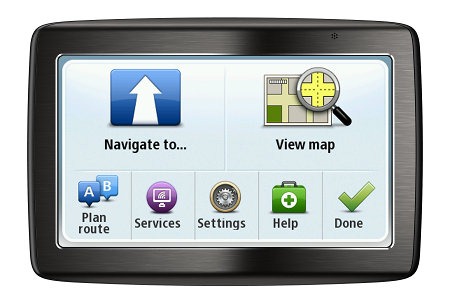
I found the interface to be intuitive, although things have been rearranged a bit compared to models using the old interface. Most features are still there, with one notable exception – itinerary planning (AKA multi-destination routing) is nowhere to be found. Like older Garmin nuvis, only one via point is allowed. Here’s what the main menu looks like:
There were lags when using the touchscreen; not a full second, but enough to be annoying.
The keypad shows all upper case letters, but types lower case unless you hit the shift key, causing frustration when naming and saving favorites. A minor point, but one that they should have caught. Also, you have to go into the menu to save favorites; you cannot do it from the results screen after you’ve searched for a POI or address.
As usual with TomToms, you can select specific POI categories to display on the map; a nice feature indeed.
The device does not automatically power on when you start your car, but you can set it to automatically shut down (under Settings > Battery Saving).
Navigating with the TomTom VIA 1535TM
One thing I really like is a new option that allows you to show a Favorites shortcut screen at startup. You’re prompted to do this, but you can enable it from Settings > Start-up settings > Ask for a destination. It just speeds things up a bit.
You can can choose to have the route details screen, shown below, close automatically after 10 seconds (under Settings > Planning Settings).
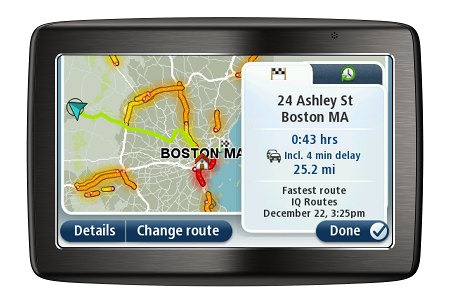
The VIA series use IQ Routes, TomTom’s historic road speed database, to determine the fastest roads based upon the time of day and day of the week.
The only Routing error I noticed when using the VIA, was when it neglected to send me on a scenic National Park Service road that is often used as a local commuter route. I ignored the directions and went the way I knew was fastest. The next time I travelled to that destination it routed me my preferred way! I don’t know if this was a fluke, or if they’re that much better than Garmin’s myTrends feature, but I was pleasantly surprised.
Another interesting thing that came up on one route was a notification that the route included unpaved roads, and asked me if I wanted to include them in the route or not. Now there’s a feature that could actually save some lives!
The VIA current speed field turns to red when exceeding the speed limit; you can also set it for an audible warning under Safety Settings. Speed limit coverage (in my experience) is mainly restricted to major highways.
Also of note, the VIA series announces if your destination is on the left or right as you approach it. I believe this is new for TomToms.
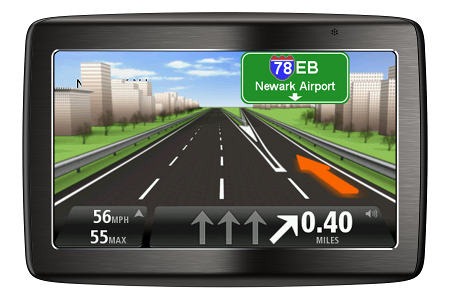
Advanced Lane Guidance, shown below, pops up as you approach many limited access highway exits. Coverage seems much more extensive than what I’ve seen with Garmin’s junction view feature.
Voice commands
The unit allows a wide range of voice commands. Unfortunately there is no option to speak a “wake up” command; you enter voice command mode by tapping a microphone icon on the map. A business card sized cheat sheet is included in the VIA box.
Voice recognition was excellent, probably better than that found on Garmin nuvis with this feature. Addresses can be entered by voice in one shot, such as “150 Baker Avenue Extension, Concord, Massachusetts.”
There were a few downsides. Being able to interact with the device without tapping the screen to initiate would be nice. I also noticed that you can’t page down a list using voice commands (you have to tap the screen). This wouldn’t be so bad, except that when you say “navigate to favorite,” the favorites list comes up in alphabetical order (problematic if you have a lot of favorites in the device). UPDATE: You can page up and down by saying “next,” “previous,” “next page,” or “previous page.”
Bluetooth
The VIA paired and connected with my Motorola Droid with minimal fuss, and imported my contacts and recent calls automatically. I made a test call to my business line and all went well. Then I tried to make a call to my wife to test voice quality and the unit locked up on me and went through a few reboot cycles before full functionality was restored.
Once I was successful in making a test call to her, sound quality was very clear on both ends. But then, all of a sudden, the call acted like it was dropped. This rarely happens with my carrier, so I suspected the TomTom was the cause. Bluetooth use seemed to tax the processor as well, causing the device to become unusually sluggish.
So I decided to try another phone, an old Samsung flip phone. It paired without problem, and again, the phone book and recent calls were imported. This call went fine, so I went back to testing my Droid. Some calls were perfect, while others exhibited problems. On one call, my wife could hear me fine, but I could only hear the briefest (one syllable) snippets.
In the end, I’m left with a pretty low opinion of this feature. If you’re reading this and have a VIA 1×35 model, I’d love to hear how well Bluetooth functions for you.
Other notable features
- Map Share – TomTom’s Map Share feature (located under the Services menu) allows you to make map error corrections and share them with others (and download corrections from others as well)
- Help – This screen allows easy access to several functions (call for help, drive to help, walk to help, and Where am I?); under drive to help, for example, you’ll find shortcuts for the nearest car repair services, hospital, fire and police destination, pharmacy and dentist
My TomTom
This is the new computer-based update and manager interface, replacing TomTom Home. It seems to have only the most basic functionality at this point. I was able to successfully update the device on a Windows 7 machine, but on my Mac it just keeps saying “connecting.”
More TomTom VIA 1535TM tips
- Tap the lower center section of the map screen for volume controls and to hear the next turn instruction
- You can enter a city by zip code
- You can disable the popup tips from Settings > Advanced Settings > Show Tips
TomTom VIA 1535TM pros
- Windshield mount is dependable and easy to attach
- Excellent voice command responsiveness
- IQ Routes historic road speed database
- Intuitive interface
- Extensive customization options
- Map Share allows you to correct maps and share corrections with others
TomTom VIA 1535TM cons
- Suction mount doesn’t perform well with universal friction mounts
- Mount is not powered; you must connect the micro-USB cable directly to the device
- Slow to lock onto satellites
- No multi-destination routing
- Touch screen response lags a bit
- Limited speed limit coverage
- Bluetooth functions poorly at times
- My TomTom update manager not fully developed
TomTom VIA 1535TM conclusion and recommendation
My biggest concern about the VIA 1535TM is the Bluetooth implementation. As far as everything else goes, most TomTom fans will be quite happy with the new VIA series. The core functionality (navigation) performed very well for me and voice command responsiveness was excellent. The new interface is a bit rough around the edges in places, but overall the experience was good. If you’re interested in this model for its voice command functionality, and have no plans to use Bluetooth, I have no problem recommending it. On the other hand, if you’re a heavy Bluetooth/hands free user, I‘d stay away from it. I’d also suggest you investigate the My TomTom update manager a bit more if you’re a Mac owner, as I could not get it to function properly with my MacBook Air.
More TomTom VIA 1535TM reviews
- Consumer-authored TomTom VIA 1535TM reviews
have been posted at Amazon
- PC Mag gives a 3.5 out of 5 star rating in their TomTom VIA 1535TM review
- An owner review on the official TomTom forums
- CNet gives a 3-1/2 out of 5 star rating in their review of the VIA 1535TM
- A mommy blogger reviews the TomTom 1535TM
I’ll be posting more hands on GPS reviews as they appear, but in the meantime, here are some…
Other TomTom VIA 1535TM resources
- The TomTom VIA 1535TM owners manual, in the language of your choice
- Use my TomTom comparison chart to see how the 1535TM stacks up against their other models
- TomTom’s official VIA message forum
- The official TomTom VIA 1535 series web page
- A video comparison of the TomTom 1535TM and Garmin nuvi 1490T:
Compare prices on the TomTom VIA 1535TM at these merchants:
- Check the current TomTom VIA 1535TM
- Get a great deal on the TomTom VIA 1535TM 5 inch GPS Navigator with Lifetime Traffic & Map Updates
at BuyDig.com, one of our favorite low-cost vendors
 About Rich Owings
I tried a couple of VIA models at Best Buy about a month ago and found that the volume on max is not loud enough for a somewhat noisy environment such as a car on the highway. How to you think the max volume compares with other models?
I didn’t notice any issues with it, but did not do a direct comparison either. It will probably perform better in the car, mounted on the windshield, where the sound bounces off it back towards you.
I’ve recently purchased a VIA 1535TM and said goodbye to my old Garmin 260W. What’s with the beautiful, detailed graphics of the ‘lane change’ screen as seen on this site? I’ve seen the same image on other sites. I’ve taken several exits in complex interchanges and have never seen the screen switch to anything like this kind of detailed image, have you? Okay, I’m nitpicking here, but just wondering…
The whole of the VIA series often get praise and a good star rate.
However the real truth is far from the 4/5 stars they get.
The return rate to both stores and TomTom are much higher than anyone would believe.
I would buy one IF
I could back up the settings
I could work out a route on my computer and transfer it to the device.
I could get MAP SHARE
I could chage the start up shut down screens.
I could add maps for other countries.
I could chage the voice to one that is not locked to the country the device was purchased in.
And many more options that are available on most other brands of GPS.
Here is what TOMTOM themselves tell you is NOT available on most of the newer GPS they sell
“I would also like to inform you that you cannot purchase voices for your device. The following features are not available for your device:
• Backing up
• Purchasing maps
• Downloading voices
• Managing maps
• Activating promotions (service cards, etc)
• Map Share corrections
• Sharing favorites
• Speed cameras”
if that were not bad enough then there are the multitude of other issues with almost all the newer TomTom models.
Think I am Biased ?
Make your own mind up and visit the tomtom support site
http://discussions.tomtom.com/t5/TomTom-GO-1000-2000-Via-Start-20/bd-p/car_navigation
I kid you not that any REAL review would find issue were it done properly and not just an “oohh that looks pretty”
If you are in the market for an “A to B” GPS with zero extras and limited functionality then the TomTom is for you.
However if you want to get serious use out of a GPS then look at other brands
Granted, my VIA 1535TM isn’t perfect, but then no GPS is. Admittedly, I most likely would have purchased another Garmin product except that those pop-up ads associated with traffic services on Garmin (and Magellan) would have driven me nuts. At least TomTom doesn’t have them—yet (uh, hopefully never—eh, TomTom?).
At $249 retail, the 1535TM is more than competitively priced considering the features it has. The fact that I got a new one for $190 at Best Buy is just that much sweeter. After two updates my unit is functioning better than ever and ideally for my needs. It’s loaded with more features than I’ll ever need. I’m anticipating that future upgrades will bring even more improvements.
I’m not sure why you say that ‘speed cameras’ is not available on the 1535TM. The speed camera feature on my unit functions flawlessly. You can also set the unit to warn you of several other different kinds of hazards with any one of many different types of warning sounds if you wish.
With lifetime map updates I won’t be purchasing maps any time soon. Lifetime traffic is working as promised and is the main reason I wanted to upgrade in the first place. My old Garmin 260w was a good unit, but it didn’t have any traffic features.
I also don’t understand why you think that the voice on the unit is locked to the country it was purchased in. The 1535TM offers several different voices in English, Spanish and French. One nitpick: there is no English voice with a British accent available like there is with Garmin. I miss “Emily’s” classy voice, but “Samantha” will do just fine. No doubt that “celebrity” voices will be available for download in the future. But at $12.95 per voice, that’s one gimmick I can do without anyway.
The bottom line is that I was leery of the “beta” nature of the VIA series at first, but decided to take a chance with one anyway. And now after owning it for a while, there is no buyer’s remorse here. To each one’s own.
I would suggest you try and change the voice from lets say US english to UK english (depending on where you are)
It is not the add in voices I refer to but the BUILT IN.
A simple trip to the tomtom forums will confirm that voices are LOCKED to the country you purchased the GPS from.
A recent update (MAJOR) has given the device many of the smaller missing features I spoke about. However there are still many MAJOR items missing.
For anyone who just does A to B routes and does not make use of the features that would make a GPS much more efficient there is probably not too much to gripe about.
BUT for anyone who makes SERIOUS use of these devices I would still be VERY VERY leery about getting a current TomTom.
As I’ve already mentioned, there is no UK English option on my unit, but that is a minor point.
The important point is that I have no doubt the majority of GPS users out there would be more than satisfied with the array of features offered on any intermediate unit, be it TomTom, Garmin, Magellan or whatever.
For the minority who want even more features, there are always the pricey top of the line models to choose from.
I forgot to mention that in ‘Advanced Settings’ the box for “Show Lane Images” IS checked.
Where are you located? You could just be in an area with poor coverage. It seems to vary significantly by region. Have you tried it in a large metro area?
FWIW, many people find the lane indicators on the map screen much more helpful.
Thanks for the reply! I didn’t realize that the lane image feature might not activate in all areas. I live in Portland, Oregon. If coverage is poor here, perhaps it will improve in the future.
I haven’t experienced most of the problems that many other VIA owners have reported with their units. I like this particular GPS model and expect it to get even better with future download updates.
I’d be shocked if it’s not available in Portland. You might try a few different Interstate exits (it will usually only show if you are being directed to exit). If that fails to show one, you might also want to go to a local store with knowledgeable sales people and ask.
As Murphy’s Law would have it, right after my post yesterday I had the occasion to drive down I-205 in the Portland metro area and the lane change screen began functioning at my entrance and exit points, so all is well after all. I shouldn’t have been so impatient! Thanks for your help.
Glad to hear it!
I own the TomTom 140s, and by far the worst feature is the grossly underpowered 266mhz processor and/or poor software implementation that causes slow route planning and even slower route recaluations after missed turns. Do the new TomToms including the 1535 have much faster routing and more powerful processors?
Also, is the near refusal of TomTom to do allow even semi U-turns been corrected? With my 140s, if you pass a street by even a foot, it almost never selects a U-turn and instead tries to route all around the universe to get back to that street.
Thanks.
While I didn’t really notice routing delays, I did notice it was slow to respond to taps – probably because the processor is underpowered. To be honest, I don’t recall a GPS navigator that seemed blazingly fast. The industry cuts a lot of corners is this arena. Most do seem to be underpowered.
I’m currently reviewing the GO 2535M LIVE, and I’ll try to test for u-turns.
Can you detach the window mount so that I might pocket the unit for city walking directions? Also can I plan a route with the streets and routes I would like to take?
I don’t believe it is removable. And no, you cannot plan and save multi-destination routes, which is what you would need to be able to do to come close to specifying the exact route you want to take.
You CAN remove the VIA 1535 from it’s suction cup mount by pulling it out of the ball and socket it swivels in. It takes a bit of a tug, but it will pull out and push back in without too much hassle.
That is one area in which my Garmin 260w was better, however. It was very easy to remove it from it’s holder.
Thanks Ron. I appreciate the correction.
That’s okay. I might have made it sound like it’s easier to remove and pop back in than it actually is. Doing it all the time for portable use might get old in a hurry and wear out the ball and socket just that much faster anyway.
Thanks Ron, Do You like the Garmin 260w or the Via 1535 for T& Maps up dates?
Sorry I ment Rich
Personally, I’d go with a newer Garmin.
No problem. By the way, just for the record the 260w is an older model that has been discontinued. The only thing that kept me from going with a newer Garmin model are those annoying pop-up ads I’ve heard about.
I just purchased the VIA 1535. I have a few annoyances (I hope a simple setting change could fix two of them ). First off, my older GPS (not TomTom) would power up once power was supplied. I loved this feature. The new TomTom requires you to push the power button to power up. The power off feature is working correctly. I find an extra unnecessary step that could be avoided.
Secondly, if I am required to use the power button I find it very difficult to reach. My car has one of those tilted front windows causing about a quarter inch of space to reach from the top of GPS to push that difficult to reach button. I have popped the GPS right off the window several times just by pushing.
Lastly, I have had an issue with the voice navigation. On many of the state and county highways I will receive an ‘stay in the right lane’ directional repetitively spoken every time I approach an intersection and often on a straightaway where no decision in travel was necessary. This wasn’t so annoying at first but after 30-40 minutes of driving I have heard it respond with this unnecessary response 20 or more times even though there is no real reason why you would have to make any directional changes. This last gripe really frustrates me. I find myself either muting the unit and there by missing the really important directional instruction or tuning out the unit and doing the same.
Anyone else troubled by these same annoyances?
Yeah, I hear ya.
Too bad the VIA 1535 doesn’t have an automatic turn-on option. But then, mine is mounted on the dash where it’s easy to reach, so I’ve gotten used to manually turning it on by now.
As far as the lane instructions are concerned, it sounds like the “Read aloud highway lane instructions” option is checked on the second page of ‘Voice Settings’. You might try unchecking it if it is and see what happens. I’ve never unchecked it (yet), so here’s hoping this works for you.
Just two 3 days ago I bought the 540tm from Amazon and now see this one sale. Ugh! I’d be interested in recommendations on if I should return the 540tm and pay $20 more for the 1535tm. Looks like the gains would be voice command and a better windshield mount. I’d like the Bluetooth option but based on reviews I’m not counting that as a gained feature. I ordered the 540tm without a friction mount…thought I’d try it see if it is as bad as others have said. If so that’ll be another $15 for the friction mount which would make these two nearly the same price. Other considerations: Does the 1535 present the same screen glare issues that many have said is evident with other TomTom models? Does the 1535 have more internal memory making map updates easier? I seem to have read somewhere that the Via series have a “simpler” menu that takes away some functionallity? Thanks for the input.
IIRC, the newer models have a bit brighter screen. Not sure about memory. They are adding some of the key features back in soon; the biggest being the ability to add several Via points to a route.
Unfortunately, I think the sale is over though.
Rick, I purchased the 1535 tm for $149 at Target yesterday. I don’t know what the 540tm comes with in terms of internal memory but the 1535 does have an expansion slot for more memory.
Doh! Forgot about that. Thanks.
I just bought a 1535TM on the advice of TomTom, they told me it could do itinerary planning–wrong!! So back to Best Buy it goes tomorrow. So far, I can’t find what I need from Garmin, Magellan, or TomTom.
I need a unit that does route planning similar to the old Garmin Streetpilot–it accepts multiple waypoints (via points) on a planned route, but automatically corrects itself if you miss a waypoint when driving the route. The old Streetpilot did this by trying three times to send you back to the waypoint, and if you ignored it all 3 times, it shut up and continued you on the route to the next waypoint. You did not have to touch the GPS unit to make this happen.
Does anybody know of a unit that comes close to this? Thanks
TomTom is supposed to be adding multiple Via points with an upcoming firmware update.
I believe that most Garmin nuvis will let you add multiple vias to a route, but for true multi-destination routing, I’d look at the nuvi 14xx series. I *think* it will behave the way you want.
Thanks Rich,
All the mfg’s seem to be going to multiple destinations rather than multiple waypoints….the GPS treats every destination the same, so if you miss an intermediate destination the GPS behaves the same as if you missed your final destination–it won’t let you go anywhere else unless you take action. Garmin has redefined “Waypoints” to behave as destinations, which only adds to the confusion.
Hi,
Well, My Tomtom work fine with my MacBook Pro, however, I don’t have Map Share, I don’t know why.
I love the ability of exclude parte of the itinerary, I have an old Nuvi 755T and I can only exclude highway, or ferri, etc.. but I can’t exclude a particular part of my trip, and that’s awesome. My Garmin is horrible for that.
Poi’s, the best of all, Magellan, if you really want this feature, and it’s the most important, that’s the device, second, Garmin, Tomtom really sucks for Poi’s, they have more then anybody else, they have to do a better, away better job on the software, so we can have a better and easy access to Poi’s.
I found the navigation better on my Via 1530TM then my Nuvi 755T.
I purchased my Via once I was on North Caroline, then, I went to Atlanta. My way back, from Alpharetta/GA to Germantown/MD, my Tomtom gave me a way, using mainly small roads fro about 2 hours or more, to get away on the north before get on the highway, save me about 3 hours comparing to my Garmin. My Garmin wanted to give the highway since the beginning, that would take me, according to Garmin prediction, almost 3 hours more driving then the prediction of my Tomtom using just internal roads, until I would be completely out of the trafic. Now, the prediction of my Tomtom was very precise, so, I believe it really saved me that 3 hours comparing to my Garmin.
Another thing that I hate on my Garmin, and I love on the Tomtom, is, once you make a mistake, or you just want to do something different then what the GPS is telling you, because you know, or at least you think you know a better way, my Garmin is keeping repeating: “recalculating” but my Tomtom just show the bar that is recalculating, instead of repeat for you at least a dozen times.
Another thing is, you get on the parking on a Mall, just to give an example, Garmin is terribly annoying, it keep repeating: drive to… drive to…, Tomtom just show that you are driving in an area that he doesn’t recognizes it, but it don’t bother you.
Just to finish it, Costco has the best, far the best price on the Via 1530TM, I did pay $139.00 + tx, ant this is still the price, and it comes with a pouch, original one.
Thanks Carlos.
I am on my third Via 1535. The first began randomly rebooting, and I took it back to Best Buy for an exchange. The second would not lock into traffic, so it was returned for a third. This time traffic locked in, but it again began to reboot constantly. I discovered that as soon as I disconnected the power/traffic receiver cord, it no longer rebooted repeatedly. Anyone else with this problem? Like the 1535 TM, but I am ready to give up on Tom-Tom!
I didn’t see the reboot issue when I tested the VIA series. Have you checkled to see if there is a firmware update available?
$114.99 on Amazon, They seem to be giving these away.
poor reviews from users.
I recently puchased Tomtom VIA 1530 and the voice recognition program is junk. I seldom get it to work. Most of the time program reply with wrong location whether I speek slowly or at a normal rate. Grandson got it to finally work after third attempt. Way too frustrating.
earl
I like the mix of features of the VIA 1535TM and the current price point at Amazon. However there are a lot of reviews where people have problems with connecting the GPS to the computer, performing map updates, and issues with the myTomTom software. And then there are people that can’t be happier with the unit. Do you have any thoughts on this? I would suspect poor quality control, but it seems that most of the complaints center around things that should be firmware/software related.
IIRC, I had problems with the MyTomTom software early on with my Mac, but not on Windows. But I *think* it worked last time on my Mac too. You might want to check the reviews and see when they were written. If they were right after release of the VIA series, things may have improved since then.
I’ve had a 1535TM since June and after a few updates mine has noticeably improved. The updates have all gone smoothly with 64 bit Windows 7. The unit isn’t perfect, but good enough for my needs. I’d say it’s a bargain at today’s discounted prices, and I really like the lack of ads with the traffic feature.
I’ve been reading on some forums that 1) Mapshare does not work yeton the Via 1535 2) the micro-sd slot does not work 3) gpsquickfix does not work.
Is this correct, and have any of these been fixed in software updates?
Yeah, looks like you cannot get Map Share now, not sure about Quick Fix…
https://www.tomtom.com/en_gb/mytomtom/getstarted/
Why doesn’t the micro_SD slot work?!
Apparently (from reading the tomtom forums) , the micro sd slot never worked in the first place; e.g, the software has lagged the hardware. (same for map share & same for gps quick fix).
Lots of people very upset that tomtom advertised features that did not work out of the box, and since then they keep saying the fixes are due “real soon now” (but this has been going on for many months)
I wasn’t aware of the microSD issue. Thanks for letting me know. You’re right, they’ve been promising fixes to MyTomTom for months.
I have the old Tom Tom one, but it has no text to voice but it works great other wise. Now I’ve purchased the Via 1535TM I wanted text to voice so that I wouldn’t have to look at the screen to see the street names. This thing is terrible. Ive updated it so all programs are current. Every thing is late to announce. The turns are announced at the intersection. Camera warnings come after the red light.
The old Tom Tom gave lane change notice in advance. This thing never tells me to keep right or left. I liked my old Tom Tom One Purchased 5 years ago much better. No wonder the Via 1535tm was on sale at Amazon.
Do you have to input zip codes to get addresses?
No.
I read somewhere that GPS screens can be difficult to see in the bright Arizona sun. Does anyone know if there is a problem seeing the screen on the Via 1535 TM?
Alternatively, is there a “best” GPS to buy for that really, really bright Arizona sun?
I find the TomTom models to be a little washed out compared to Garmins, but they all suffer when the sun hits them just right.
Well, I decided to go with the Via 1535 TM – I read that the screen is supposed to be brighter now and they have added trip planning. I just didn’t want ads. I hope they don’t add them!
There seem to be pros and cons on all of them, and I like the idea of voice recognition. My husband would never type in a destination
Thanks for your reply.
What is the best removable dash mount?
For which brand?
Which is the best Removable dash mount for the Tomtom VIA 1535TM ?
Cool. It’s a nice unit. Something like this will work, although any that are open to the front will work fine…
Arkon mount
Just one more question, please: there are many choices for screen protectors and they say anti-glare. Would this help with the Arizona sun or be a hindrance?
OK, two questions: If I should get one, which brand do you recommend? Prices seem to be all over the place.
Thanks, again, for your help.
I wouldn’t do it unless you see that it’s an issue. I’ve always used Invisible Shield, but I have been seeing higher ratings for other brands on Amazon recently. Also note that these can be difficult to remove; I’ve heard of people cracking large screen GPS receivers when removing them.
Wow, I’m glad I asked.
Thanks very much for this site.
Have you changed your opinion of this VIA 1535TM since your original review shown above?
No, but I haven’t tested it again since then either. However, these devices usually improve some after they’ve been out a few months and the firmware has been updated some.
Hey Rich, i just recently purchased the via 1535tm and it is working like a charm. I like the fact that the mount in the back is built in. I also have the 540tm and the mount keeps unclipping itself with the slightest touch. Anyways my question is this. How does tomtom site know that i have lifetime maps? I know there is a code that came with the box, but is it still used and if so, where do i input my code?
If you create an account online, when you log in you will see “My TomTom” in the upper right-hand corner. There is a drop down menu where you can enter your promotional code – or, you can do as I did when I couldn’t find it, and call them. They will link your promotional code to your account for you. That gives you your lifetime maps and traffic.
Thanks Elaine.
Thanks Elaine
Your tomtom comes with a coupon for life time maps. When you register at tomtom.com, you enter that number and it remembers it whenever a new map is available and then it sends you an email notice.
Just updated my 1535tm with a 2gig micro memory card inserted. New updates were downloaded and installed, Seems to lock in faster and it actualy asked me to format the memory card before I disconnected. However the update reconfigured my menue and I had to re-do my settings. Also had to reset some addresses. The unit works a little faster with the new updates. I wish that Tom Tom would notify registered users when updates are available. I have been trying to update every two weeks or so.
Hey Rich, or anyone, are you having trouble with the bluetooth syncing. I got it to work once for about a week but its difficult to get it to sync to my phone now. My phone keeps asking me do i want to sync and i hit yes and then type in the code 0000 and it would sit there for a bit and then my phone asks me the same question with no results.
This might help. What model phone do you have?
http://discussions.tomtom.com/t5/TomTom-GO-800-1000-2000-Via/bluetooth-connections-via1535TM/m-p/106591/highlight/true#M19186
Perhaps you can help me??? I love my TomTom in my daily driver but during the summer months (in central NY) I sometimes drive my 1959 Corvette Conv. on the weekends… with the top down, between the GREAT sound of my engine & the usual road noise, even with the volume all the way up & can’t hear the TomTom’ directions. Is there a way (or a new unit) I can use an earbud? Thank You for any help, Marc
Some older TomToms and Garmins have an audio out jack. Here is info on TomTom units (link). The following Garmin nuvis have an audio out jack:
nuvi 295W
nuvi 300 series
nuvi 600 series
nuvi 700 series
nuvi 705 series
nuvi 800 series
nuvi 805 series
nuvi 5000 series
I have a VIA 1505TM which is supposed to give free lifetime map updates (the only reason I purchased it), and the map is outdated. I am able to log onto MyTomTom (the latest version) and it tells me that I have no updates available.
I have been fighting this battle with my 1505TM since January.
My current map is dated October 2011 and after 3 months of dealing with Tech Support I was finally offered a map update in April that failed. It seems that it download the map and then started the install. The installation starts, and when the VIA and My TomTom both say there is 13:00 remaining and then the counter goes from 0% to 100%, and the screen changes and says “Something has going wrong. Contact support”.
So here is a list of things that they have had me try so far – I disabled my Firewall, I tried the download using Internet Explorer and then Firefox. I uninstalled the MyTomTom app, and re-installed it. I changed the port setting on MyTomTom from 4000 to 5000, then 8000. I tried clearing the cache numerous times, and also doing the ‘drum beat’ reset on the device. I tried doing all of these things on a WIN-XP machine as well as my WIN-7 machine and still nothing worked.
So I followed their advise again and ended up losing my user account along with the Tech Support that was linked to the problem. I then had to start over by re-registering and linking the unit to my new account and now it is back to not even offering a newer map, yet if I go to Maps it says that my map is outdated and that they are more than willing to sell me one (again the only reason I purchased a TomTom was for the FREE map updates).
I have seen hundreds of these complaints across the Internet and I still haven’t seen any resolutions.
I wonder if it could just be that the map is too big for the unit’s memory.
hi i love my tomtom via 1535 but the only problem is the suction doesnt work at all! it’s very frustrating cause most of the time i use it it just keeps on falling off while im driving. good thing the screen hasn’t been broken yet. so i just wanna ask if you can recommend me any alternative mount that i can use. thank you!
I’ve had my unit since Dec. of 2011 and I can say that the mount is terrible. It won’t stick anymore either. It never stayed on the supplied smooth disk. Very poor design. often falls off the windshield also.
I love this tom-tom!! I got it about 2 or 3 months ago and during the heat of Texas summer, the suction mount works great. But as the weather started to cool down, it has fallen off the windshield as I was driving about 4 times now. I went to Best Buy and asked if there was an accessory that would work better for this. The guy said to lick my hands to moisten the suction and I wouldn’t have any issues. Ok, I chose not to lick my hands, but did use moisture from my water bottle and he was right. I already use a dash mount for my iPhone so buying another dash mount is not an option. I will continue to try this method during the winter months and see how it goes. If it falls and breaks, at least I have the BB replacement plan to fall back on.
Best practices – clean windshield, clean suction mount, a drop of water behind the suction cup will help. Works best on a warm windshield.
It may be obvious, but when borrowing my daughter’s unit she had to explain to me to rotate the collar on the back to make the suction cup stick properly. On a clean windshield with a little water it would often stick ok, but sometimes fall off. Rotating the collar properly solved that problem. 🙂
I’ve owned my VIA 1535tm for almost a year now and it’s fallen off of it’s disk two or three times, but not for a while now. As long as the cup is moistened sufficiently it seems to hold good enough overall. It’s a bit awkward having to reach around the unit to turn the bezel for securing it, but not a deal breaker.
i’ll try this, hope it works. thanks!
Lexy and Ron,
You may not have realized it when you rated this unit, but we had a contest going on…
http://gpstracklog.com/2012/06/write-a-review-win-a-t-shirt.html
You are both t-shirt winners. Check your email and reply there with a size preference and mailing address.
wow! that’s awesome! yes i got the email, thank you!
I purchased a VIA 1535 TM new in factory sealed box on 6-5-2012. I couldn’t get the voice recognition to work as there was no microphone icon. Through web research I have found that the unit that was packed in the box was actually a VIA 1505. BIG factory mistake. Anyone else had this problem? I paid for a top of the line unit and it looks like they “stuck it to me”!
Ouch! Can you return it?
Rich, yes, I was able to return it after two calls to get them to send me the Fedex form. I didn’t feel as though I should pay for shipping since it was a factory error. I just got the new device this morning. Haven’t had a chance to check it out yet.
Glad they made it right. Let us know what you think of it.
Can one or two address destinations be erased after using without having all destinations erased
at once. This erasing everything happens on my XL330S.
You can erase individual favorites, but I don’t believe you can erase individual entries in the recent destinations list.
I can’t figure out how to either. Once it’s in my Favorites I can only delete all or nothing. I have the Via 1535. The menu is not user friendly. Sometimes you have to perform a function in a round about way.
Settings > Favorite, then select a favorite, then Delete.
Thanks Rich. Your instructions are correct and I can erase just one or more addresses from the Favourites list.
Any addresses in the future that are wanted just temporarily, I will install into Favourites list. Thank you.
I use Windows 7 and I downloaded mytomtom. It took over and made itself my homepage, etc. I called and they told me I can just connect my unit or go to the website and I don’t need the program installed on my computer. I’ve done several updates that way.
Now, I get updates and if I just connect my unit, instead of going to download the update, I get a message that I must first install the program! Any experience with this? I haven’t had time to call them yet.
I think you need MyTomTom. You can set it to where it doesn’t automatically run.
I have a TomTom VIA 1535TM. I installed a 4gb sd card which the device formatted for me. I downloaded and installed the newest maps. My TomTom now tells me there is a new map download available, but I don’t have enough memory for it. Is there a way to tell the device to format the sd card or do I have to purchase another new card. So far I can’t find a way to reformat the card.
I’d say use a computer to reformat it.
Are you saying there’s no way to format the sd card in the device? I have no way to connect it to my computer.
My 2 GB card formatted in the 1535tm fine, but an 8GB would not format. 4 GB might be max it will handle.
You have to format the card to the GPS in order for the GPS to recognize it.
A computer formatted card will not be recognized by the GPS. However, the card might re-format after a computer format. Some brand cards are finicky. PS don’t download the maps that need the high capasity. I think they might be most of the world. The USA and Canada are fine. unless you are going to drive in Europe or China. a 4 Gig card is plenty,
My 2 gig sill has 98% of it’s capasity available.
Hi Rich, Ive written before about my other tomtom xxl 550 and for some reason it works better than this via 1535 tm. First off which is noted countless times here, the bluetooth is choppy. It is now not even working. Anyways this model (1535) has a recent problem that i wanted to know if you have encountered or heard of. The screen gets locked up and ive notice it happens more when it is showing the advance lane feature of what exit to take. It would stay on that screen but it would still be able to tell me what is the next turn etc. I even can see the next street to turn on but as for the screen it stays locked on the advance lane guidance. Also another problem is when it is on the screen the line that marks where you need to be heading is no longer there. It sometimes does come back, but i need it to be on all the time so i can foresee my next turn etc. Very annoying. Again my XXL runs smoothly i love it. This Via is being used by my gf by the way and when i am driving her car i use the Via and its just not working. please help
It may or may not help, but is your firmware up to date?
I plug in my gps once a month to get the latest maps and corrections. I assume that any updates like firmware would upload during that time. Am i wrong? if so, how do i go about getting the new firmware?
It probably is up to date then. I’d try again and double-check, then call TomTom.
I am having trouble downloading the MYTOMTOM software onto my MacBook Air. Does anyone have tips for doing this?