Hands on with the best Oregon yet
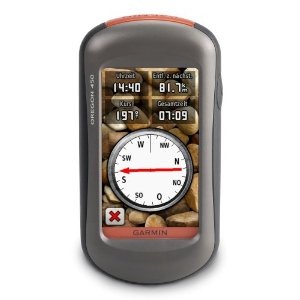
The Garmin Oregon 450 is one of the newest members of the touchscreen Oregon family, featuring the latest improvements such as better visibility, a tri-axial compass, custom dashboards, advanced track navigation features and the ability to load custom maps and BirdsEye aerial imagery. I’ll delve into those details shortly, but first I want to clarify the differences between the Oregon 450 and some closely…
Related units
- The Oregon 450t adds pre-loaded, 1:100,000 scale topo maps of the US to the 450’s feature set (see the next section for reasons not to spend the extra money!)
- The Oregon 550 adds a 3.2 MP geotagging camera
- Going the other direction, dropping down to the Oregon 300, you’ll go back to an earlier generation (less legible) screen and you’ll get a standard electronic compass
- To see how the Oregon 450 stands up against other Garmin models, check out my Garmin handheld GPS comparison chart.
Save your money
The 450t’s pre-loaded topo maps of the entire U.S. may appeal to those who travel a lot, but there are few other reasons to step up to that model. The reason? There are better quality 1:24,000 scale topo maps available for free for most states. GPS File Depot is a great source for such maps.
Custom maps and BirdsEye imagery
Then there is the recent introduction of Garmin custom maps. Basically, this allows you to put any map image on your Oregon. Found a park trail map online? Add it to your GPS! The image at left below shows a custom map — a USGS topo map (raster) image. You can read more about this feature by checking out my posts on Garmin custom maps.
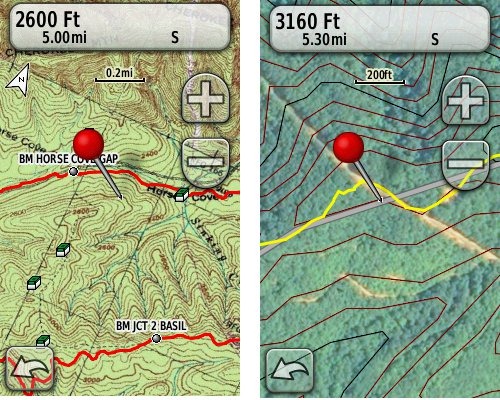
Garmin also recently announced their BirdsEye aerial imagery program, a $29.99 annual subscription that will allow you to add aerial imagery to the Oregon series. The image at right, above, shows a screenshot.
Now that we have that out of the way, lets look at some of the other new features in the Oregon line, which are all found on the 450…
Oregon 450 touchscreen display
All of the newer generation high-resolution GPS screens suffer a bit when it comes to visibility. The 550 series is slightly better than the x00 first generation, but the newer 450 series seems better yet. As a matter of fact, it’s the first Oregon I’m going to recommend for fixed mount, non-powered use, such as bike handlebars. In the past, I’ve recommended Oregons primarily for handheld use, where you will intuitively tilt it for the best view.
Let me back up a bit and share what I saw when testing the Oregon 450. The first time out on my bike, I was surprised by the visibility, but when I took the 450 off my handlebars, and held it side by side with my 400t, I couldn’t tell much difference looking at them straight on. Once I tried different angles though, it became clear to me that the 450 was viewable over a wider range than the older model. I don’t recall seeing this when I tested the 550t, so I asked Garmin if there had been changes between the 450 and 550 series in regards to screen technology. Here’s the response I got:
While the most notable enhancement in our Oregon screens was from the x00 to the x50 lineup, customers may notice other improvements that are a result of various hardware and software improvements.
The difference is seen in sunny, bright conditions only. I could not detect much difference in shade. And regardless, in at least some conditions, the 450 still isn’t as bright as older units that don’t have such high resolution screens (e.g., the 60/76C and eTrex C series). But the huge number of improvements the Oregon series is accumulating leaves me with little reservation in recommending them over previous model lines. With the recent improvements in screen technology, visibility just isn’t a deal killer, even for bikers. Even so, I still recommend that users create sun and shade profiles to improve visibility (discussed a little later in this review).
Portions of the following are taken from my Oregon 550t review.
Oregon 450 tri-axial compass
Having a tri-axial compass means you don’t have to hold the unit level while navigating. The downside is that the calibration process is more complicated than that for a two-axis electronic compass. It’s the same procedure that is used on the Dakota 20 — here’s a brief video I shot of it. The compass should be recalibrated every time you change the batteries in the unit.
Garmin Oregon 450 Interface
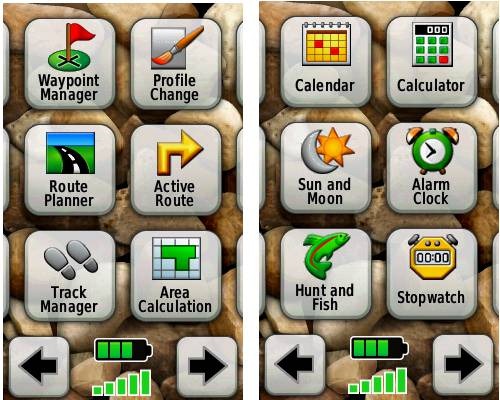
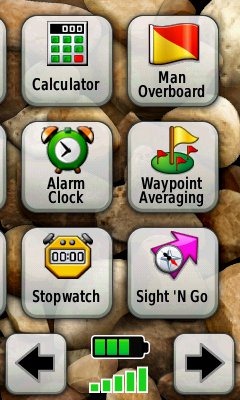
Handheld GPS receivers typically offer lots of options, and can be overwhelming for a first-time user. Even so, the Oregon is about as intuitive as they get, and I love the touch screen menus. The main menu is spread across five screens (as shown below); these can be customized, so if you don’t need “Man Overboard”, you don’t have to display it.
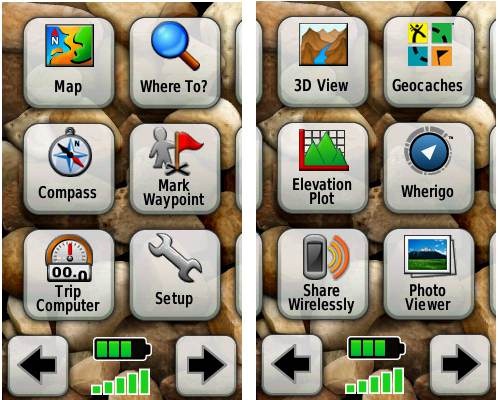
Customizing the Garmin Oregon 450
Take the time to do some additional customization and it gets even better. Here are some tips:
Use profiles – There is a “Change profiles” item on the main menu, and you can create a new one via Setup > Profiles. Tap the new profile to give it a name. Now start changing various preferences. Want track up when geocaching and north up when biking? No problem. The possibilities are nearly endless.
Rearrange the main menu – Set this different for each profile. I make extensive use of the Track Manager, so that gets moved to the first main menu screen for my hiking and biking profiles.
Create sun and shade profiles – A great use of this tool is to create separate sun and shade profiles (perhaps even one for each activity). Create a Sun profile and then go to Setup > Maps > Advanced Map Setup. Set Shaded Relief to Do Not Show to enhance visibility in bright light. If you’re in an area with lots of national parks and forest, you can also improve visibility by getting rid of the green background. Go to Setup > Map > Advanced Map Setup > Zoom Levels > Land Cover and set it to Off. Credit GPS Fix with originating these tips for sun / shade profiles.
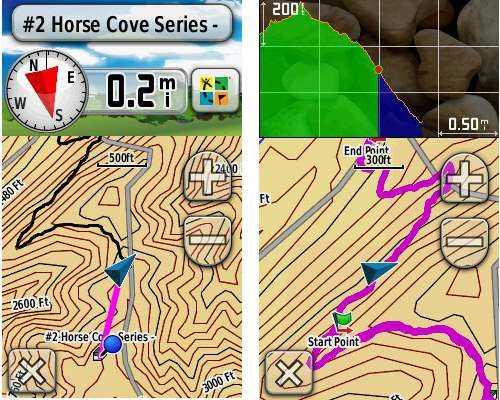
Dashboards – The map screen can be set up to show 0, 2 or 4 data fields, or to display a dashboard. Choices for the latter are recreational, automotive, stopwatch, compass, large data field, geocaching (nearest or active) or elevation plot. I’ve included screenshots showing the last two below.
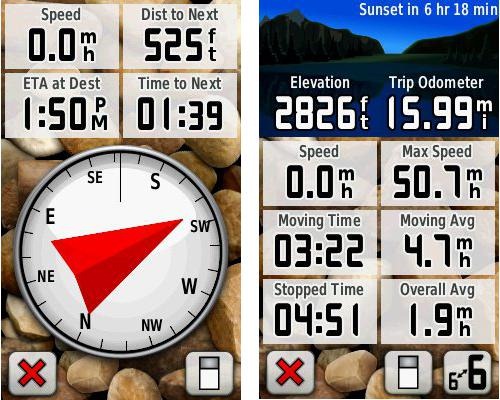
Shown below are the compass and trip computer screens. The data fields can, of course, be customized, as can the background. The trip computer screen can be also switched to show fewer (but larger) data fields. The top section of each can be modified display one of the previously mentioned dashboards.
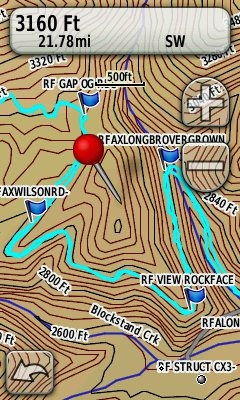
Finally, here’s a random interface tip… When you select a location on the map, a push pin appears. You can now slide the map around underneath the pin, and zoom in as needed, to fine tune the selected location..
Route, Track and Waypoint management
The Oregon series has excellent route, track and waypoint management tools, including:
- Waypoints – The ability to project a waypoint, and to reposition one at your current location.
- Tracks – You can choose to hide or show tracks on the map and give them a custom color (17 colors are available). The image at the right shows a track in light blue (a record of a previous trip).
- Routes – You can view a map of the entire route, edit the route, reverse it and view an elevation plot.
Track Navigation
The Oregon 450 features some recent improvements in track navigation. Select a track to navigate and a route will be created. Waypoints are created for the high and low elevation points and any user waypoints along the track are added to the route. I’m a heavy user of track navigation. If I head out for a trail I’ve never traveled before, I do a search online for tracks (favorite search terms are .gpx, gps, trail name, and park name) and load the track to the device. One advantage of this new track navigation feature is that, unlike typical backcountry route navigation, you’ll get an estimate of actual trail distance rather than “as the crow flies” mileage.
Geocaching with the Oregon 450
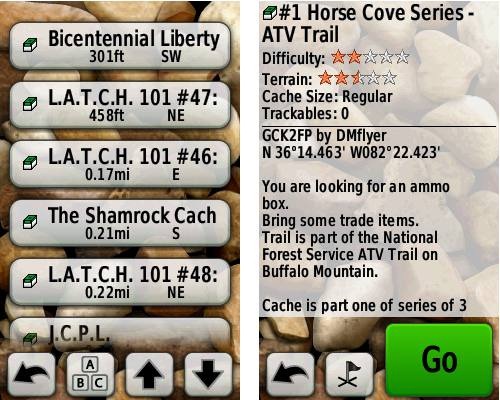
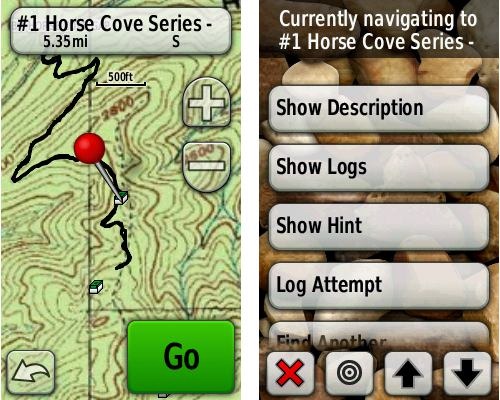
The Oregon 450 is set up for full paperless geocaching support, meaning you can see the description, logs, and the hint, and you can log your attempt (find, DNF, etc.) for later transfer back to geocaching.com. Speaking of which, full access to these features requires a premium membership at geocaching.com. Shown below, clockwise from top left: Closest geocaches, geocache description, menu for a specific cache, and custom map using a USGS topo.
Wireless data transfer
The Oregon 450 is capable of wireless data transfer with other compatible Garmin units. You can transfer waypoints, tracks, routes and geocache summaries (paperless caching details cannot be transferred).
Garmin Oregon 450 in your car
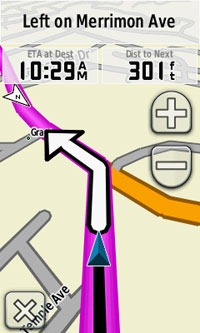
The Oregon 450 makes an excellent dual-use unit, though you’ll probably want City Navigator and a car kit if you want to use it as a turn-by-turn navigator in your car. If I wanted a single unit for trail and road, an Oregon plus City Navigator (screenshot at right) would be my top choice.
Garmin Oregon 450 performance
The Oregon 450 performed very well for me in testing against multiple units including the Garmin GPSMAP 60CSx and the Magellan eXplorist GC. I noticed no significant differences in accuracy at ground zero when geocaching.
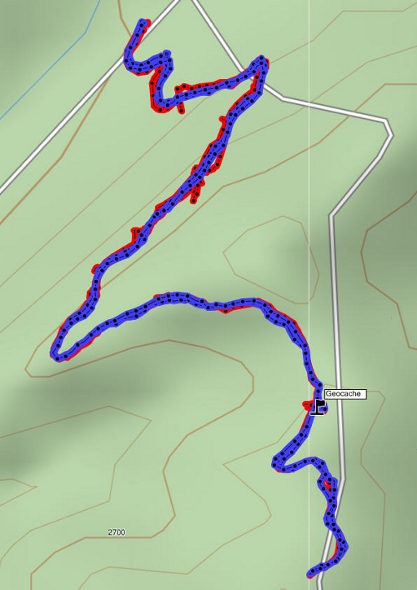
Multiple tracklogs were collected, comparing the Oregon 450 and the Garmin 60CSx. Tracking was set to collect points every five seconds while mountain biking. Steep terrain ridden in both directions, combined with frequent stops to record notes, resulted in good testing environments. In the images below, the Oregon 450 tracklog is in blue, the 60CSx is in red. I’ve compiled these four tracks in a single .gdb file, which you can download and open in MapSource or BaseCamp for closer examination.
In one test, shown below, the 60CSX wandered a bit more than the Oregon in a few spots, while the Oregon track separated more at one point on the uphill and downhill runs. This test was a draw.
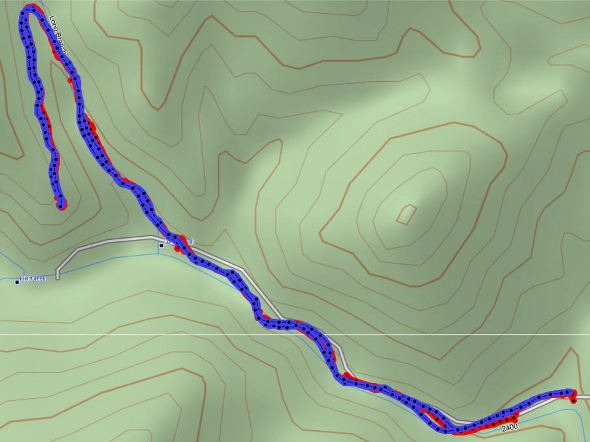
In the test below, the Oregon significantly outperformed the 60CSx. I’ve labeled a geocache at one point, because I moved around a fair bit there. Still there were two other points where the 60CSx wandered significantly. Each unit had a single instance of track separation on the uphill and downhill segments.
Battery life is rated by Garmin at 16 hours. In my testing it ranged from 10 hours, 27 minutes (backlight always on) to 16 hours, 51 minutes (backlight timeout set for two minutes, battery saver mode enabled). Battery life tests were conducted with the unit stationary, using Eneloop low discharge rechargeable batteries.
One other performance note — I’ve always been very impressed with how accurately my 60CSx reports overall elevation gain, and disappointed with the inaccurate numbers generated by my Oregon 400t. I was pleasantly surprised to see that the Oregon 450 is extremely close to my 60CSx in terms of reported elevation gain. I hope to do some more testing before I send the review unit back to Garmin, and will post a full report here.
UPDATE: Well, I set out on the trail to test this out and to my surprise, the 400t, 450 and 60CSx were all within 2% of each other. Perhaps Garmin fixed this on the Oregon x00 series in their most recent firmware update. Go figure!
Garmin Oregon 450 pros
- Tri-axial compass
- Barometric altimeter
- Great touch screen interface
- Ability to customize display and menus using profiles
- Excellent track management and routing tools
- Paperless geocaching support
- Availability of free maps
- Accepts Garmin custom raster maps
- Accepts Garmin Birds Eye imagery
- Improved visibility over previous Oregon series
Garmin Oregon 450 cons
- Somewhat poorer sunlight visibility than eTrex and GPSMAP color units
Recommendation and conclusion
Highly recommended. The Oregon 450 is a great workhorse, at a reasonable price. The interface is very user friendly and it has a lengthy feature set. It is an excellent choice for nearly any outdoor activity, including geocaching and hiking. This is the first Oregon I’m recommending for bikes too, due to the improved screen visibility, which makes it more appropriate for fixed-mount use.
More Garmin Oregon 450 reviews
- Consumer-authored Garmin Oregon 450 review
have been posted at Amazon
- More consumer reviews of the Oregon 450
have been posted at at REI.com
- A first impressions user review of the Oregon 450
- It’s Not About the Numbers reviews the Garmin 450 from a geocacher (and Blackberry user’s) perspective
I’ll be posting more hands on GPS reviews as they appear, but in the meantime, here are some…
Other Garmin Oregon 450 resources
- The Garmin Oregon 450 owners manual, in the language of your choice
- A Garmin Oregon message forum
- This tool will show you how the Oregon 450 compares to other Garmin handhelds
- The Garmin Oregon wiki has an Oregon FAQ
- Trying to decide between the Oregon 450 and the Garmin 62 series? Maybe this will help
- Garmin Oregon training videos
- The official Garmin Oregon 450 web page
Compare prices on the Garmin Oregon 450 at these merchants:
- Check the current Garmin Oregon 450
price at Amazon
- Find the Garmin Oregon 450t at GPS City, one of our favorite low cost vendors
- Buy the Garmin Oregon 450
direct from Garmin
- Get a great deal on the Garmin Oregon 450 Handheld GPS
at J&R Computer
- Check out the deal on the Garmin Oregon 450 GPS
at REI.com, where satisfaction is guaranteed and members get 10% back on eligible purchases
- Get the Garmin Oregon 450
for an amazing price on eBay


Rich, This might be a Dumb question, But when I go to compass. It does not show a arrow for the direction I am facing. Do I need to be moving for the arrow to work or is there a setting I missed?? Thank you. Al
The arrow points to your destination so you won’t see it unless you are actively navigating to a waypoint, etc.
Thanks Rich. Do you know what the (GpsGate Client Ver. as of Sep 21, 2011 Download) film where is about?? Is this some thing I should download to the GPS??
Here’s what it does…
http://gpsgate.com/products/gpsgate_client
Unless you have a specific need, there’s no reason to download it.
Rich, I found this while looking for rechargeable batteries and the readers here on this forum might be interested in this. I was not sure where to post this so I hope here is ok. Al
http://www.rechargeable-battery-review.com/consumer-batteries/aa-battery-tests/aa-nimh-battery-performance.html
Hmm, I see Sanyo batteries but it’s strange that they don’t show Sanyo Eneloops.
This is a great deal…been using these for over a year on my 450…I just bought these for my son’s Etrex 20….
Sanyo NEW 1500 eneloop 4 Pack AA Ni-MH Pre-Charged Rechargeable Batteries with Charger
Sanyo Eneloops are the ones to get….see my other post for the location to get them…they also list more batteries if you need them. I have used these in my Garmin 450 for a year or more…I have the same unit as I listed…no problems at all…I also ice fish with them…so the cold weather is no issue so far
I did not see any Sanyo Eneloops that have 2500mah. According to Garmin owners manual the Oregon450 should use 2500mah or better. I was looking at the Powerex 2700mah.
Sanyo Eneloop 2500 mAh batteries
FWIW, I’m often using older 2,000 mAH Eneloops without any problems.
I am 12 years old and I just got an Oregon 450 for Christmas. I am a geocacher and whenever I try to geocache the maps on it lack detail. How do I get new maps with more detail, and what maps would you recommend?
There are many excellent free topos and trail maps at http://gpsfiledepot.com. You’ll also find tutorials there on how to load them.
Thanks,
I just downloaded a detailed map. Whenever I go to find a geocache my route is a strait line to that location. The line goes over lakes, through houses, etc. When I go to change the guidance method from off road to on road for time or distance a message comes up saying, Route Calculation Error: Maps do not have routable roads in this area. How do I fix this and make the routes be on a road?
Yeah, the free topo maps don’t have routable roads. If you want that, the easiest solution is this https://buy.garmin.com/shop/shop.do?cID=255&fKeys=FILTER_SERIES_TOPOUS24K,FILTER_REGION_NORTHAMERICA
(which includes routable roads and 24K topos)
or this:
https://buy.garmin.com/shop/shop.do?cID=253&pID=28765
Rich, Are you saying that the Garmin 24K topo can also be used as a turn by turn routable road map with in a specified region? And also can be routable in the woods?? And if yes in 3d?? Thank you. Al
Not sure about 3D, but yes to your other questions. This should help…
http://gpstracklog.com/2011/06/garmin-topo-us-24k-review.html
Rich, What is the difference between the two Birdseye imagery that Garmin sells?? One says (Birdseye Topo, US & Canada) and the other (Birdseye satellite imagery)??
The former shows topo maps…
http://gpstracklog.com/2011/05/garmin-birdseye-topo-us-and-canada.html
while the latter displays aerial imagery…
http://gpstracklog.com/2011/07/garmin-birdseye-satellite-imagery-2.html
Thank you. But why would any one buy the Topo maps for $90. if they can buy the Birdseye Topo, US & Canada for $30.?? Am I missing some thing?? Routable??
Well first of all, why would anyone buy them at all, since there are great topos available for free at http://gpsfiledepot.com?
Seriously though, the new Garmin 24K maps are routable, unlike BirdsEye products, and they include routable roads. Vector products like these have some inherent pros and cons, as do raster products like BirdsEye.
Vector maps will usually work much better than BirdsEye when zoomed way in or way out.
Thanks Rich. That is what I wanted to know.
Which Garmin Topo map comes preloaded with the 450t model? Is it the TOPO U.S. 100K at https://buy.garmin.com/shop/shop.do?cID=255&pID=28229 ?
You discussed the free topo maps at gpsfiledepot as an alternative. A question I have is if the shading on the preloaded Garmin maps help out much if you want to hike in the Rocky Mountains and need to find passes so you can get through, just like looking at those sculpted relief maps in National Park Visitor centers could help? Or does the shading not help out that much?
Yes, that’s the one.
I think the shading helps, but its not coded to elevation, so it wouldn’t help that much with the example you mentioned. Here are some screenshots from other models, but it should give you an idea…
http://gpstracklog.com/wp-content/uploads/2010/08/62smaps.jpg
http://gpstracklog.com/wp-content/uploads/2011/10/eTrex-20-track-nav_thumb.jpg
http://gpstracklog.com/wp-content/uploads/2010/08/62strack_thumb.jpg
What would be the situations the topo shading would help with, or aren’t there many?
It can give you a good idea of terrain at a glance. Also, Garmin topos with shading have a superior digital elevation model (DEM), which Garmin seems to be moving towards using for smoothing reported elevation gain. They have implemented this on the Montana series but it wouldn’t surprise me to see it added to other series via a future firmware update.
And FWIW, the newer Garmin 24K series maps offer routable roads and trails. Trail coverage isn’t that great for the latter, but it can turn your handheld into a passable turn-by-turn highway navigator.
Thanks. Another question I have is if you enable at the same time the 100K U.S. Topo and the free gpsfiledepot.com maps, could you get the detail of the contour lines of gpsfiledepot and shaded relief of Garmin’s 100K at the exact same time?
The reason why: I have the Oregon 450. When visiting Garmin’s online store they give you an interactive tool to see what their 100K U.S. Topo looks like. Below the 500 ft zoom level it appears to me that the Garmin 100K is worthless because of lack of detail, while gpsfiledepot maps help you understand the shape of the land better. However, zoomed out past 800 ft the gpsfiledepot maps look confusing with squiggly lines and the shaded relief from Garmin U.S. Topo starts to be quite helpful (I’m in the Rocky Mountains area).
Why I would wonder: I’ve noticed on my 450, which doesn’t come with the preloaded topos but rather the very primitive relief basemap, when it’s zoomed to 3 mi I can see both the contour lines of gpsfiledepot and shaded relief of the basemap at the exact same time. I was curious if the same thing would happen if I were to combine with Garmin’s 100K U.S., and if I would have shaded relief at any zoom level?
I am just starting geocaching and looking for my first handheld. I use Garmin for vehicles. I am torn between the 450, Dakota 20 and the eTrek 30. Nervous about the toggle on the 30, many reports of poor visability on the 450/550 and the Dakota. I have good camera equipment so a camera is not an issue. I appreciate the manufacturers are always making changes and improving but is the toggle (and smaller screen) less of a possible problem than the idea of going out on a sunny day? Thoughts/thanks
I think you’ve hit the nail on the head. There are pros and cons of each unit. For geocaching, with a unit in hand, I’d probably go for the Oregon 450 or GPSMAP 62s. You will find that you intuitively and automatically tilt the 450 for the best view. If you have significant concerns, it would be best to try one out at an REI or at a local geocaching event.
I haven’t seen or heard of many toggle problems, but the eTrex screens are much smaller.
I’ve been using my Garmin Oregon 450 for mapping both trail runs and mtn bike rides. On a recent ride that has a LOT of tight switchbacks and loops and curves I noticed that the track was more of a straight line than the actual track.
I went into SETUP and RECORD METHOD was set to AUTO which, I believe, is the default. I’m curious to know what the Oregon 450 uses to determine AUTO (i.e., time/distance). In the meantime, I plan to change the mode to distance and want to use 00.005 miles but the smallest number I can use seems to be 00.01. Or, perhaps, I’ll just use TIME and set it to 1 sec. That’s a lot of data point especially when not moving.
Here is a link to a recent track (AUTO mode) shown in Google Earth where the actual trail is visible.
Any comments from users who’ve used AUTO, DISTANCE, and TIME modes and compared the results? Thanks,
I tend to use TIME and set it to 1 second or 5 seconds. 1 second may give you more accurate elevation gain info, but depending upon how you download tracks, may cause headaches for you if you’re out long enough for it to archive your track.
If you go to Setup > Units > Distance/Speed and change it to Yards, you’ll be able to set the track distance recording to a shorter interval, but your distance data fields will then show yards instead of miles.
I usually do a RESET of tracks and other info at the start of each event then download the CURRENT file at the end. I’ll give it a try using 1s or 5s and see how it goes.
In your experience using 1s data how long (i.e. hours) before it archives?
Thanks,
DavidB
At 10,000 trackpoints per file, that’s only 166.67 minutes, but I think it will archive before that.
Hi Rich,
This probably sounds like a trivial and dumb question but I’m asking it anyway.
I noticed that on yous screen shots of the menus that your Geocaches icon is the Geocache logo, the one on my menu is of a treasure chest, how can I change it to the Geocache logo?
Thanks
I think that’s a change Garmin made in the firmware once they started opencaching.com. I know of no way to change it.
Based on your reviews, I am planning to purchase the Oregon 450 for use while backpacking, hiking and snowshoeing. I live in Colorado and am planning a trip to Peru to hike the Inca Trail to Machu Picchu. I am confused as to what I will need to do as far as getting maps. Will what comes loaded take care of the US? I don’t see that Garmin has any maps of Peru. Also, I often use poles while hiking and snowshoeing. Will attaching the unit to my backpack, or belt allow the unit to remain accurate? Thank you so much for you help. Your website has been a great help already!
No, the basemap won’t do you much good, even in the US. But there are plenty of free topos at http://gpsfiledepot.com. You’ll even find some of Peru there. There is also this…
http://www.garmin.com.pe/topo.html
Finding 1:24,000 scale maps may be next to impossible though.
In cleared areas, BirdsEye aerial imagery may prove helpful, but I’m not sure what resolution is offered there…
http://gpstracklog.com/2011/07/garmin-birdseye-satellite-imagery-2.html
I would also suggest searching Google for machu picchu gpx tracks
The higher you can get the GPS on your body/pack the better. It should work fine up high on the back or on a shoulder strap.
Thank you SO MUCH for your help! One more question… I saw somewhere that a new generation/release of Garmin hiking GPS’s is to come out in the April/May timeframe. Given that it is March now, do you recommend waiting?
I expect new product announcements will come in late May to early June. But the units themselves may not be available until fall. And they will not be discounted at first either. So no, I wouldn’t wait.
Thanks for the great information. I will order it today!!
Glad to help. If this is your first GPS, you may want to check out this series…
http://gpstracklog.com/category/handheld-sport-gps/handheld-gps-101
What a great site. Thanks so much. I use a garmin Nuvi 650 for most of my turn by turn and geocaching along with the program GSAK. Just love it.
I’m starting to use the Oregon 450 and like it a lot.
My question is about the Favorites in the Nuvi. Is there a way to transfer that to the 450? I see the 450 has a “curent” file but I see no way to access it on the 450.
Thank you for your time.
Yes, simply copy current.gpx from the nuvi, rename it to anythingelse.gpx and then transfer that to the 450′s GPX folder.
Worked great. Thank you. Sometimes you overlook the most simple and obvious.
Thanks agian.
Cool. Glad to help!
I sent this request to Groundspeak but it’s been 2 days now with no response & thought maybe you could help me out….
I have a pocket query of 500 caches already on my Garmin 450. I ran a new query of the same caches to get new ones posted and to get the updated logs. When I put it in my GPSr I got the newest caches but not the latest logs on all the other ones. Do I first have to delete the old query/GPX file then upload the new query?
Thanks ~Sis Ban~
That’s probably the issue. And while I don’t think it addresses that question, you may find this helpful if you haven’t already seen it…
http://garminoregon.wikispaces.com/Geocaching
I had not been to that site before. You’ve got a connection for everything….. Thanks Rich!
~Sis Ban~
Hi Rich. I hope you can help me. I recently purchased a Garmin Oregon 450 with the intention of marking the property lines on a large parcel of land, survey points, deer stands, etc. on a 24,000 topo. I want to be able to keep the info on my GPS as well as print it off for others. The Cabella’s salesman said this unit could do that, but I can’t seem to figure it out. I’ve marked survey points as waypoints and can’t find how to connect them with a line. Can I do this on the Oregon, do I have to do it on a separate mapping program and then load it to the GPS, or is this not doable? Thanks very much!
You can use the Route function to connect the waypoints.
You can print the route using many different software programs. One option is to use Garmin’s BaseCamp program and some of the free topos from http://gpsfiledepot.com.
I just got an Oregon 450 for geocaching and I’m having a blast with it! Is there any way to delete geocaches that I don’t want on the GPS anymore? I can delete Waypoints but can’t seem to figure out how to delete geocaches. Thanks!
You’ll need to delete the .gpx files. See GC9 at…
http://garminoregon.wikispaces.com/Geocaching
I bought Garmin Oregon 450t, specifically to be able to use the area calculation feature.
The first day i bought it I calculated 3 areas, worked fine, and I archived them to the GPS.
Every since then I have not been able to use the area calculation feature. I go to area calculation,
press start, walk the perimeter of the area. The GPS draws a line but when I turn a corner for example, it does not make the corner with the line. When i go back to the starting point, the line follows me back to the starting point, without tracing the outline of the perimeter. And when I press calculate, it gives me all zeros. What should I be doing, what is it that I am doing wrong?Thank you for your help with this question
This may help…
http://garminoregon.wikispaces.com/message/view/home/36571154
Otherwise, I’d use http://garmin.com/webupdater to update the firmware. There’s a good chance that will fix any bug.
If that doesn’t work, I’d try a master reset… http://garminoregon.wikispaces.com/Miscellaneous
If all else fails, call (don’t email) Garmin.
@Nick – Yes, that should work.
Question..I have the Garmin Topo 24 and the Inland water maps… ( micro card)..anyways I plan on selling these…can these be used in another Garmin GPS….I thought I read somewhere once you use these you can not use them in another Garmin unit?
AFAIK, maps bought on microSD cards can be moved from device to device. Not sure about Inland Waters, but I don’t see how they would lock it to one device.